An insight is the main chart opened in a larger view of its own. There you can show several metrics at once, give the chart its own filters, switch between line, area, bar and number, and read every value in a table. Insights you save are shared with your team on that website.
Info
Insights are available on Pro, Scale and Enterprise. On the Free plan, Open as insight and the Insights menu show a lock with Pro, and opening them shows what insights do with an option to upgrade.
An insight is different from the AI insights tab in the sidebar: AI insights is a briefing of what changed, with a next step for each finding, while an insight is a chart you build yourself.
Open an insight
You can start an insight in two places on the Analytics tab:
- Open as insight in the header of the main chart (on a phone it sits in the chart menu ...). The insight starts from what the chart shows right now: the metric, period, interval, comparison, filters and segment.
- The Insights menu at the top of the Analytics tab. Choose New insight, or open one of the Saved insights. With seven or more saved insights, a search box helps you find one.
Back to Analytics returns to the dashboard. Each insight has its own address, so the browser's back button works too.
Build the chart
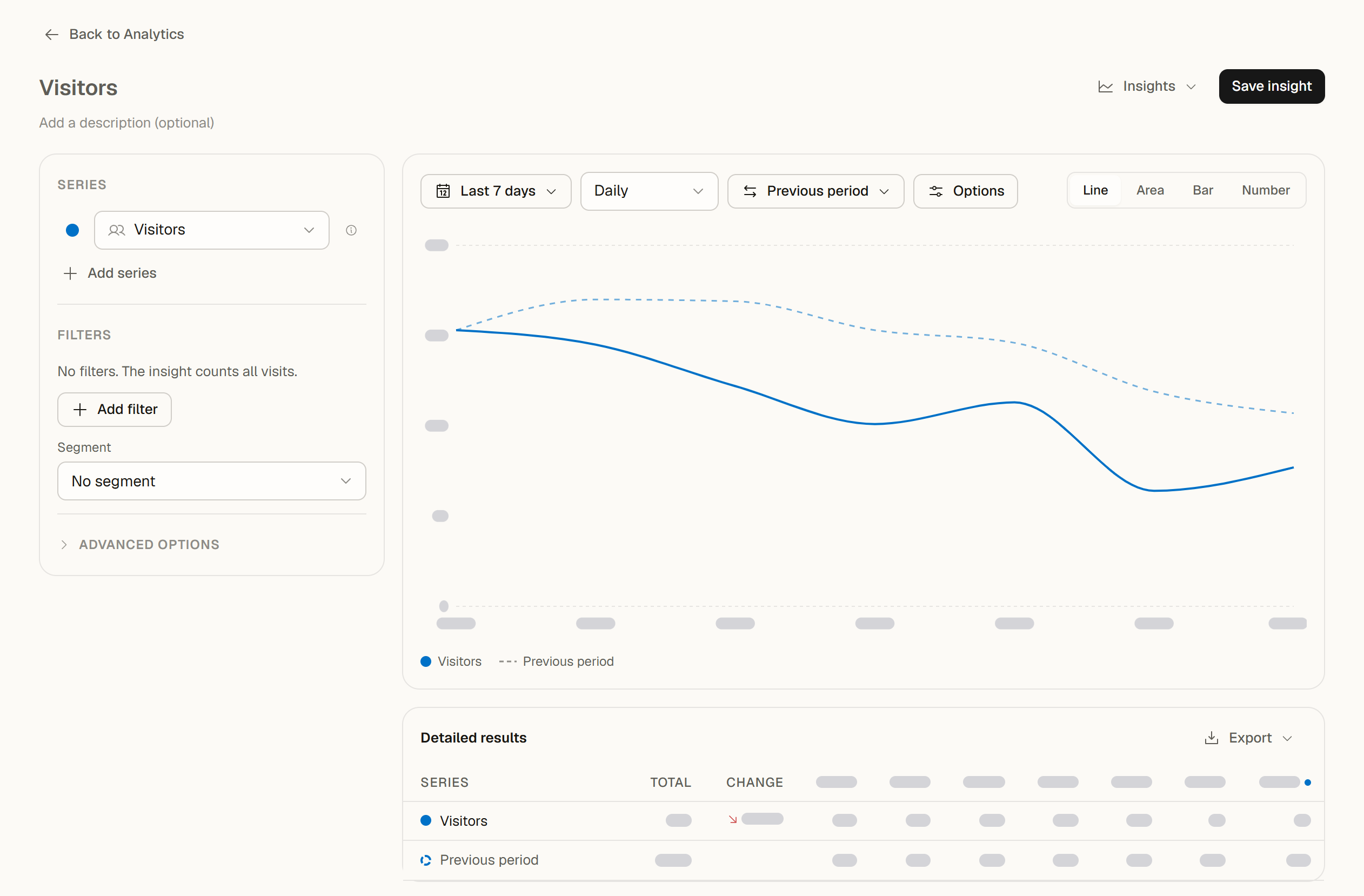
The left panel holds the settings. Below a large screen it sits above the chart as a set of collapsible sections.
Series
Add up to five metrics with Add series: Visitors, Visits, Page views, Bounce rate and Avg. visit duration, each once. Pick a color for each. Counts share the left axis, while Bounce rate and Avg. visit duration use the right axis, so the scales never mix.
Filters
The insight has its own filters (up to 10) and an optional Segment. Use Add filter to narrow it down, for example to one country or one traffic source. These filters belong to the insight: changing them never changes the filters on your dashboard.
Advanced options
Here you manage the website's goal lines. They appear on the insight and on the main chart. Each line shows On this chart, or what it needs with Show.
Change the view
The toolbar above the chart controls the time and the look:
- Date range: a preset or a custom range inside your plan's report window.
- Grouped by: hourly, daily, weekly or monthly, depending on the range.
- Compare: no comparison, the previous period, or an earlier period such as 1 year earlier. Earlier periods follow the same plan rules as on the main chart; see Comparing date periods.
- Options: Moving average (each point shows the average of the last 7 intervals), Cumulative (running totals of Visitors, Visits and Page views) and Show comparison (the earlier period as a dashed line, or as lighter bars in the Bar view).
- Chart type: Line, Area, Bar or Number.
- The point that is still running, such as today or this week, shows the value so far and looks the same as every other point in every chart type. Its tooltip says So far. Dashed lines, and lighter bars in the Bar view, always mean the comparison.
Detailed results
Under the chart, Detailed results lists every series with its value per interval, the Total for the whole period and the Change against the compared period. While the period is still in progress, Change compares it with the same elapsed span of the comparison period, and a note shows up to which time. The table shows the measured values, so it stays the same when you turn on a moving average or running totals. The total counts every visitor once and weighs rates by visits.
Export the results
Use Export on the results table:
- Export as CSV: the results table.
- Export as Excel (.xlsx): the results, the totals and an About sheet with the period, filters and segment.
Every member of the team can export the results. See Exporting data.
Save and share
- Save insight stores a new insight, Save stores your changes. Give it a name and, if you like, a description.
- The ... menu has Save as new insight, Copy link and Delete insight.
- Saved insights belong to the website and are visible to everyone on your team who can open its dashboard. A website can hold up to 200 saved insights.
- Owners, admins and editors can save, change and delete insights. Viewers can open them, explore them without saving and export the results; the header then shows View only.
- If a teammate saved the same insight after you opened it, Zenovay asks whether to keep your version or load theirs.
- Leaving an insight with unsaved changes asks for confirmation first.
Insights are part of your team's dashboard. They are not shown on public dashboards or in client portals.
Common questions
Why does an earlier period show a lock? The compared dates reach beyond your plan's report window (1 year on Pro, 4 years on Scale). A note under the toolbar names the plan that includes them.
Why are some goal lines missing? A goal line belongs to one metric and, for counts, to one interval. A line that does not fit the insight is listed under the legend with what it needs, and Show changes the insight in one step. Goal lines are also hidden while Cumulative is on.
Can I use the insight's filters on the dashboard? No, they stay with the insight. To filter the whole dashboard, use the filter on the Analytics tab or a saved segment.