The Users list shows everyone who visited your site in the selected period, one row per person. Click a row to open that person's journey: page views, goal completions and payments, from the first visit on.
Where to find it
Open your website from Domains, select Journeys and then the Users sub-tab. Journeys, including the Users list, is available on Pro, Scale and Enterprise. On the Free plan the tab explains what the list offers, with an option to upgrade.
The list uses the period at the top of Journeys, the same one Goals, Funnels and Flows use.
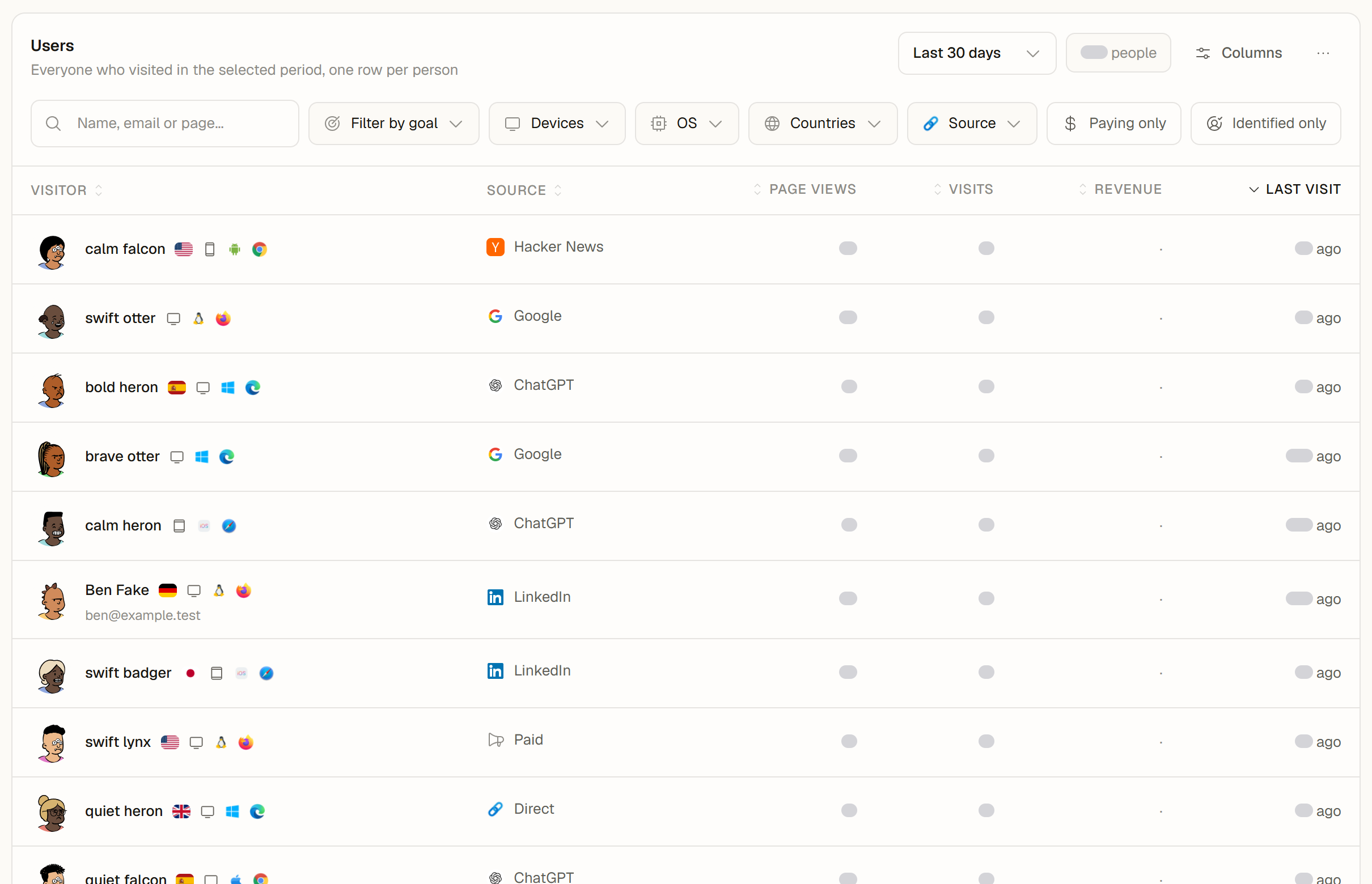
What a row is
- A person you identified with an email (see Identifying logged-in users) has one row, even across several devices and visits.
- Other visitors are listed by their anonymous visitor ID.
- On a site that measures without cookies, a visitor who comes back on another day appears as a new row. People you identify with an email are still merged into one row. A hint above the list says so.
Visits and Page views are counted the same way as on the Analytics tab. Imported history (for example from Plausible) holds totals only, so it adds no people to this list.
Columns
The list starts with Visitor, Source, Page views, Visits, Revenue and Last visit. You can add First visit, Country, Device, Browser, OS, Landing page, First source, Campaign, Goals completed and Orders.
Open the columns menu
Click Columns above the list, or choose Customize columns in the ... menu.
Show, hide and reorder
Switch columns on or off, and drag them or use the arrows to change the order. Visitor is always shown.
Reset when you like
Reset to default in the menu, or Reset columns in the ... menu, brings back the original columns.
Your column layout is saved to your account, so it follows you to other devices and browsers. Each teammate keeps their own layout.
Sort
Click any column header to sort by it, and click again to switch between ascending and descending order. The sort covers the whole list, not only the rows on screen. On a phone, the list shows one card per person and offers Sort by with a switch for the direction.
Filter and search
- Search people finds a name, an email or a page.
- Filters narrows the list by goal, device, OS, country and source, and offers Paying only and Identified only.
- Filtering by a goal lists the people who completed that goal in the period.
The count above the list shows how many people match. Load more adds the next people to the list.
Blur names for screenshots
Before you share your screen, choose Blur names and emails in the ... menu. Names, emails and customer IDs are masked at once, in the list and in the details of a person; Show names and emails brings them back. It is the same setting as Blur identifiers in your preferences. Exports keep the full data.
Export the list
The ... menu above the list offers Export as CSV and Export as Excel (.xlsx).
- The file holds every person who matches your filters, search and sort, with the columns you show, in your order.
- Visitor becomes two columns, Name and Email, Revenue comes with a Currency column, and each row ends with the Visitor ID.
- Because the list holds personal data, owners, admins and editors can export it. Viewers see the export items with the note Ask an owner, admin or editor to export this data., and client portal users cannot export the list.
- Exports hold up to 10,000 people on Pro, 50,000 on Scale and 100,000 on Enterprise. When more people match, a message tells you how many, and the About sheet of the Excel file notes it. Narrow the period or the filters to export the rest.
On the Free plan the export items show a lock with Pro. See Exporting analytics data for the formats.
Shared dashboards
On a public dashboard, the Users list shows no names or emails, and offers no sorting, no export and no source, OS, paying or identified filters.