Goals let you track important conversions on your website. Learn how to create your first goal and start measuring what matters.
Info
Free plans can create up to 3 goals. Conversion rates and monetary goal values are available on Pro and above.
What Are Goals?
Goals track specific user actions:
| Use Case | Example Goal |
|---|---|
| Lead generation | Form submission |
| E-commerce | Purchase completion |
| SaaS | Account signup |
| Content | Article read |
| Engagement | Video watched |
Why Track Goals?
Goals help you:
- Measure conversion rates
- Identify traffic sources that convert
- Optimize user journeys
- Calculate ROI
- Attribute revenue
Goal Types Overview
| Type | Tracks | Example |
|---|---|---|
| URL Match | Page visits | Thank you page |
| Element Click | Button/link clicks | CTA button |
| Custom Event | JavaScript events | Form submit |
Creating Your First Goal
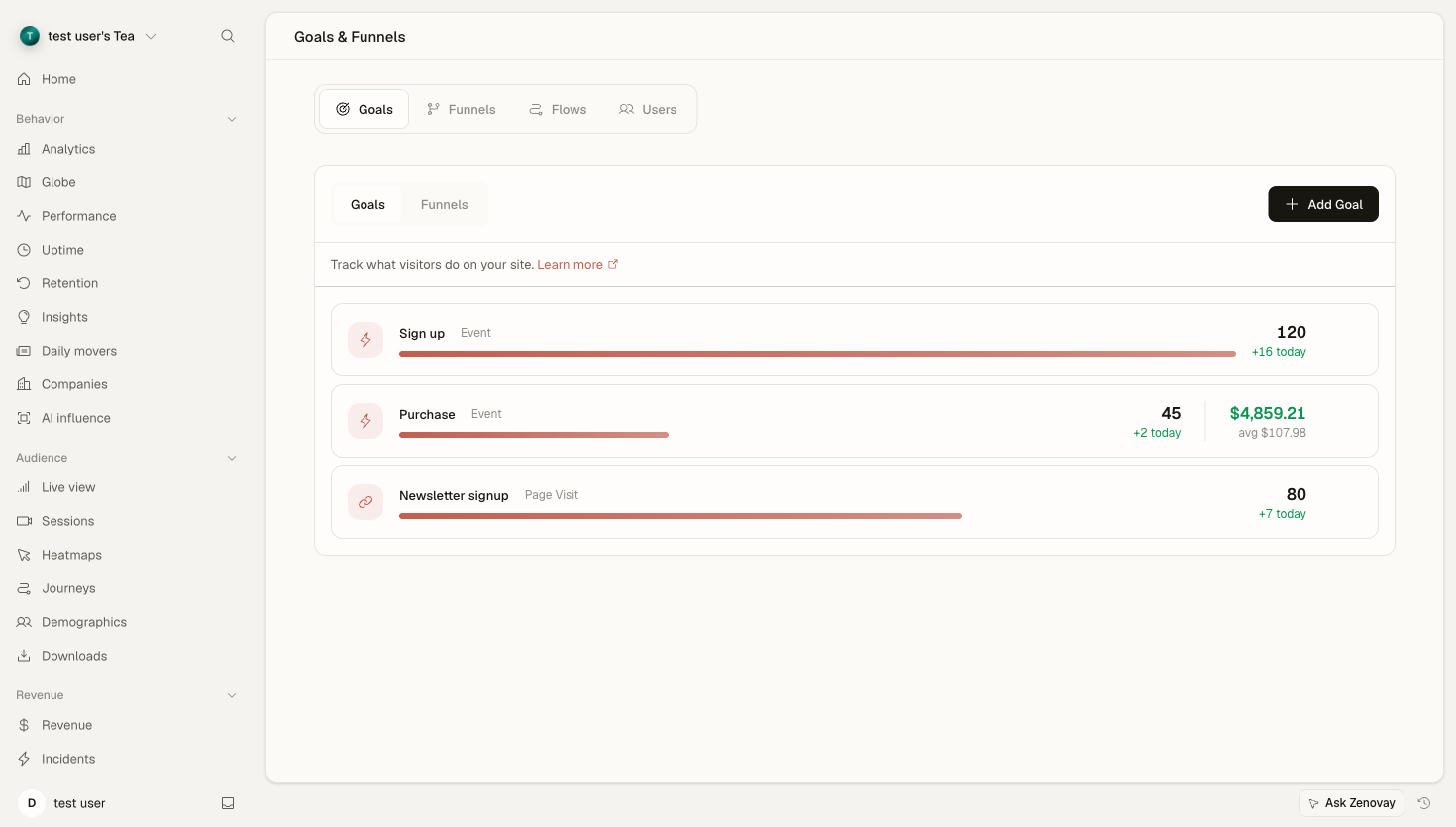
Goals live on each website's dashboard, in the Journeys tab.
Step-by-Step Guide
Open the Goals view
Open your website's dashboard, select the Journeys tab, then the Goals subtab.
Add a goal
Click Add Goal.
Choose Goal Type
Select the type that matches your conversion (Page Visit, Click, or Event).
Configure Goal
Enter the specific trigger (URL, element, or event name).
Name Your Goal
Give it a descriptive name.
Set Value (Optional)
Assign a monetary value if applicable (Pro and above).
Save Goal
Save to activate the goal.
Quick Start: URL Goal
The simplest goal type - track visits to a specific page.
Example: Thank You Page
- Open Journeys → Goals and click Add Goal
- Select "URL Match"
- Enter URL:
/thank-youor/order-complete - Name: "Purchase Complete"
- Value:
$50(average order value) - Save
URL Matching Options
| Match Type | Pattern | Matches |
|---|---|---|
| Exact | /thank-you | Only that exact path |
| Contains | thank | Any URL containing "thank" |
| Starts with | /blog/ | All blog posts |
| Ends with | /success | Any URL ending in "success" |
| Regex | /order-\d+/ | Order pages with numbers |
Quick Start: Click Goal
Track when users click specific elements.
Example: CTA Button
- Open Journeys → Goals and click Add Goal
- Select "Element Click"
- Enter CSS selector:
#signup-buttonor.cta-main - Name: "CTA Clicked"
- Save
Finding CSS Selectors
To get the selector:
- Right-click the element
- Choose "Inspect"
- Find id or class
- Use
#idor.class
Quick Start: Custom Event Goal
Track custom JavaScript events.
Example: Form Submission
- Add tracking code to your form:
document.querySelector('form').addEventListener('submit', function() {
  zenovay('goal', 'signup_form');
});
- Create the goal in Zenovay:
- Select "Custom Event"
- Event name:
signup_form - Name: "Signup Form Submitted"
- Save
Info
Custom event names must be lowercase and may only contain letters, numbers, underscores, and hyphens. If you fire zenovay('goal', 'event_name') for an event that doesn't have a goal yet, Zenovay can auto-create a Custom Event goal for you.
Goal Configuration Options
Basic Settings
| Setting | Description |
|---|---|
| Name | Display name in reports |
| Type | URL Match, Element Click, or Custom Event |
| Trigger | What activates the goal |
| Active | Enable/disable tracking |
Value Settings
Pro PlanAssign monetary value:
| Option | Use Case |
|---|---|
| Fixed value | Same value every time |
| Dynamic value | Value from JavaScript |
| No value | Just count conversions |
Dynamic Value Example
Pass a value from your page for Custom Event goals:
// On purchase complete page
zenovay('goal', 'purchase', {
  value: orderTotal
});
Once-per-session counting
Each goal counts at most once per session. If a visitor triggers the same goal twice in one session, only the first completion is recorded, so you don't double-count a single visit.
Testing Your Goal
Before Going Live
-
Test trigger manually
- Visit the URL / click the element / fire the event
- Check the goal records a completion
-
Verify in the dashboard
- Open Journeys → Goals
- You should see the test completion
-
Check attribution
- Verify the traffic source is credited
Debug Mode
Enable debug to test:
zenovay('debug');
// Now perform the action
// Check the console for goal events
Viewing Goal Data
Goal Reports
After setup, find each goal's completions, total value, and (on Pro and above) conversion rate in Journeys → Goals on your website's dashboard.
Key Metrics
| Metric | Description |
|---|---|
| Completions | Total goal completions |
| Conversion Rate | % of visitors converting (Pro and above) |
| Value | Total goal value |
Best Practices
Naming Conventions
Use clear, descriptive names:
| Bad | Good |
|---|---|
| Goal 1 | Newsletter Signup |
| Button Click | CTA - Free Trial Click |
| Page View | Purchase Complete |
Value Assignment
Tips for setting values:
- Use actual revenue for purchases
- Estimate lead value for forms
- Use no value for engagement goals
- Be consistent across similar goals
Common Goals
Lead Generation
| Goal | Trigger |
|---|---|
| Contact form | Form submission event |
| Newsletter | Email submit event |
| Demo request | Demo page URL |
| Content download | PDF click event |
E-commerce
| Goal | Trigger |
|---|---|
| Add to cart | Button click |
| Begin checkout | Checkout URL |
| Purchase | Thank you page |
| Create account | Account created event |
SaaS
| Goal | Trigger |
|---|---|
| Signup | Registration complete |
| Trial start | Trial activation |
| Feature use | In-app event |
| Upgrade | Upgrade complete |
Troubleshooting
Goal Not Tracking
If completions don't appear:
-
Check trigger accuracy
- URL exact or contains?
- Selector correct?
- Event name matches?
-
Verify the tracking script is installed
- Tracking code on the goal page?
-
Test in debug mode
- Are events firing?
-
Check the goal is active
- Not disabled?
Double Counting
Goals already count at most once per session. If you still see duplicates:
- Check for duplicate triggers on the page
- Verify the event isn't firing multiple times