The main chart sits at the top of a website's Analytics tab. It shows one metric over time, can draw an earlier period next to it and lets you measure the change between any two points. Choosing the metric, comparing periods within your plan's report window and measuring ranges work on every plan. Exports, goal lines and insights are part of Pro and above.
Where to find it
Open your website from Domains and select the Analytics tab. Above the chart is a row of tiles: Live, Visitors, Visits, Page views, Bounce rate and Avg. visit duration. The chart header holds the controls, from left to right: the metric, the period, the comparison, the interval and the filter.
Choose what the chart shows
Open the metric picker
Click the metric name at the left of the chart header (it starts on Visitors).
Pick a metric
Choose one of the five metrics. Each entry has a one-line definition under its name.
Or click a tile
Clicking a tile above the chart shows that metric on the chart as well. The active tile is underlined.
| Metric | What it counts |
|---|---|
| Visitors | Unique people who visited in the period. |
| Visits | Sessions on your site. A visit ends after 30 minutes without activity (you can change this per website). |
| Page views | Every page loaded, including repeat views during a visit. |
| Bounce rate | Share of visits that viewed only one page. |
| Avg. visit duration | Average engaged time of the visits that lasted longer than 0 seconds. |
The i button next to the metric explains what the number means on this website, based on how the site counts visitors.
Sites that measure without cookies
On a site in cookieless mode, a visitor is recognized for one day. Over several days, Visitors therefore adds up daily visitors, and a visit also ends at midnight (UTC) or when the visitor's network changes. Visitors, Visits, Bounce rate and Avg. visit duration then carry a ≈ sign as estimates. Page views are an exact count in every mode. A site that measures without cookies until a visitor consents combines both methods, and the i button shows the share of visits measured without cookies. See How unique visitors are counted for the details.
Compare two periods
The comparison draws an earlier period as a dashed line behind the current one. The tiles above the chart show the change against the same comparison. The interval that is still running, such as today, looks the same as every other point and shows the value so far. Its tooltip says So far, and dashed lines always mean the comparison.
Open the comparison
Click the comparison control in the chart header (it reads vs previous period by default).
Pick what to compare to
Choose No comparison, Previous period or Earlier period. For an earlier period, set a number and a unit: days, weeks, months or years.
Read the chart
Hover any point: the tooltip shows the current and the compared value.
The comparison you choose is remembered for this website in your browser, and Copy link to this view in the chart menu carries it in the link. For how the periods line up and what your plan allows, see Comparing date periods.
Measure a range
Select part of the chart to read the change between two points and the totals in between.
- Mouse: press on the chart and drag to the left or right.
- Touch: press and hold on the chart until the start point is marked, then drag.
- Keyboard: focus the chart, move with the arrow keys, and hold Shift while you press the arrow keys to select. Home and End jump to the first and last point.
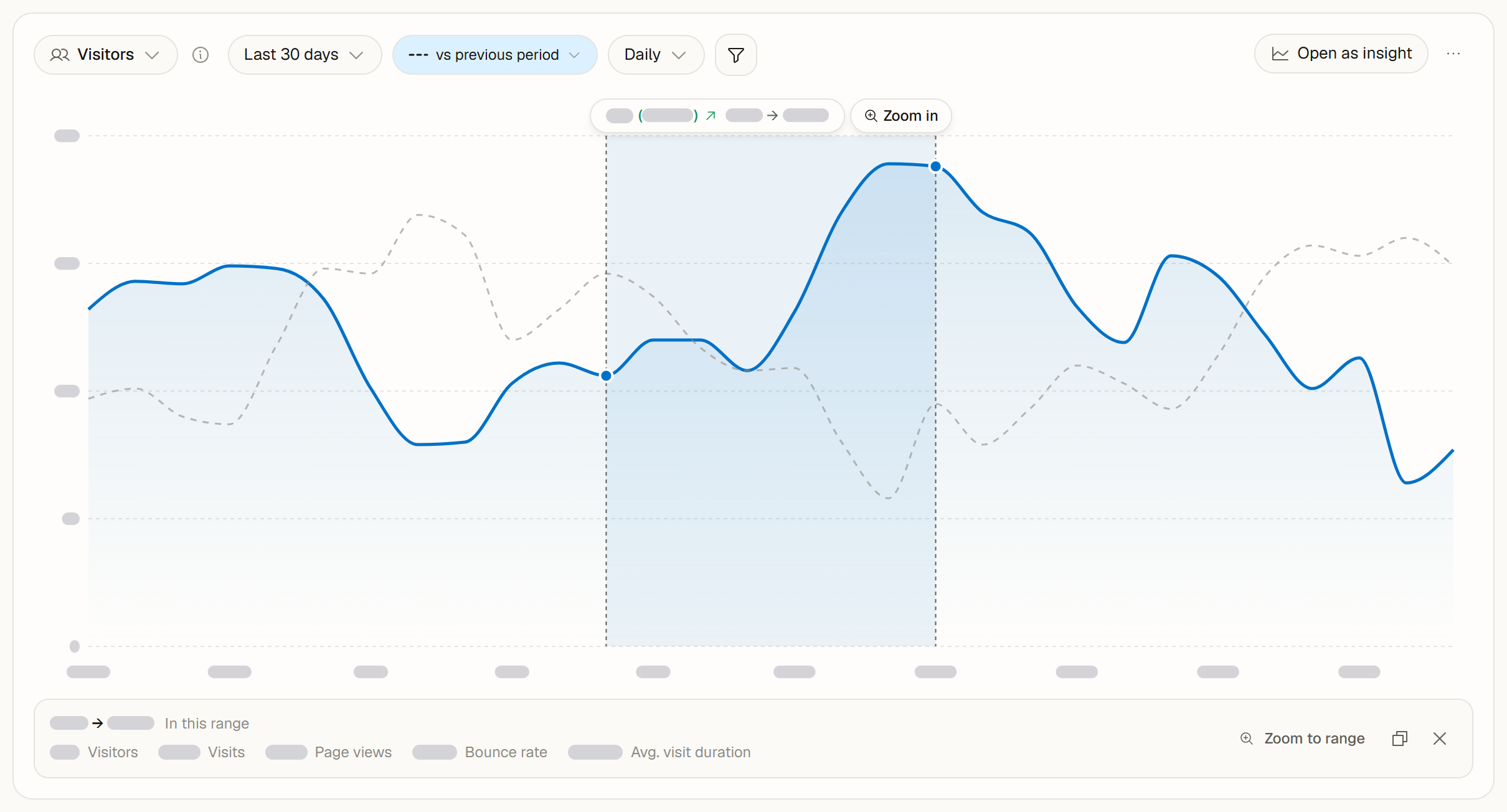
While you select, a label above the chart shows the change from the first to the last point of the range, as a number and in percent. For Bounce rate the change is shown in percentage points.
When you let go, a strip under the chart shows In this range: the totals of all five metrics for the whole range, with every visitor counted once. The strip has three actions:
- Zoom to range sets the dashboard period to the selected days, like Zoom in below.
- Copy selection copies the range, the change and the totals as text.
- Clear selection removes the selection. Esc does the same.
Choosing another period, interval or filter clears the selection.
Zoom in
After you select a range, a Zoom in button appears next to the label above the chart (on a phone, a magnifier icon). It sets the chart to the selected days. While the chart has focus, the Z key does the same.
- Zoom works in whole days, so you can go from the last 24 hours into a single day, or from months into a few days.
- When the selection already covers the period, for example Today, there is nothing smaller to show: Zoom in is not offered and Zoom to range is turned off.
- After zooming, Back to Last 30 days (or the period you came from) returns to the earlier view. The Back and Forward buttons of your browser step through your zooms too.
- Choosing a period yourself starts fresh.
Notes on the chart
Click any point to open the notes for that day. If you can edit the website, you can add a note there. Show notes on chart and Hide notes on chart in the chart menu (...) switch the markers on or off for everyone on the team. See Chart annotations.
More in the chart menu
The ... menu at the right of the chart header also holds:
- Export as CSV and Export as Excel (.xlsx) Pro Plan: one row per point with all five metrics. With a comparison on, the Excel file adds a sheet for the compared period. See Exporting data.
- Add goal line Pro Plan: draw a target value on the chart. A goal line that needs another metric, interval or range is listed under the chart with Show, which switches the chart to fit. See Goal lines.
- Copy link to this view: a link with the metric, period, interval and comparison.
Open as insight Pro Plan next to the menu opens the chart in a larger view with several metrics, its own filters and a detailed results table. See Open a chart as an insight.
On the Free plan these Pro items show a lock with Pro, and choosing one opens an upgrade prompt.
Share card
Share card above the chart turns your numbers into an image for a post or a report: one headline metric, a summary of three metrics or your top sources. Share cards are on every plan. See Share card: post your numbers as an image.
Shared dashboards
On a public dashboard, visitors of the link can switch the metric, the period, the comparison and the interval, measure ranges and zoom into them. Notes, goal lines, exports and insights stay in your team's dashboard.
Common questions
Why do the tiles and the dashed line show different changes for Today? For a period that is still running, the tiles compare the same elapsed time (for example today until 14:00 with yesterday until 14:00). The dashed line always shows the full compared period.
Why does the chart start later than the period I picked? Reports show the history your plan includes: 30 days on Free, 1 year on Pro, 4 years on Scale and all retained data on Enterprise. A note under the chart names the first day shown.
Why is the interval different from the one I chose? Very long ranges are drawn with a coarser interval, for example weekly instead of daily. A note under the chart says so.