The Incidents tab collects in one feed what needs your attention on a website: the site going down, errors spiking, a new error that occurs often in its first day and a goal whose conversions drop sharply. Each incident says what happened in numbers, and a details panel shows the timeline and the evidence.
Incidents are available on Pro, Scale and Enterprise. On the Free plan the tab shows what it offers with View plans.
Where to find it
Open your website from Domains and select Incidents in the Revenue group of the sidebar.
What opens an incident
| Type | When it opens |
|---|---|
| Site down | Uptime monitoring finds several failed checks in a row. See Uptime Monitoring. |
| Error spike | A day has far more errors than usual, or errors on a day that is normally quiet. |
| New error | An error seen for the first time occurs at least 10 times in its first 24 hours. |
| Conversion drop | Every 30 minutes Zenovay compares the last hour of each goal with its hourly average over the last 7 days and opens an incident when it falls below 75%. A goal needs about 5 conversions per hour, otherwise normal ups and downs would look like drops. |
Errors that come from bots, browser extensions, other websites or harmless browser messages never open an incident. They are the same reports the Errors tab hides as noise.
Read the feed
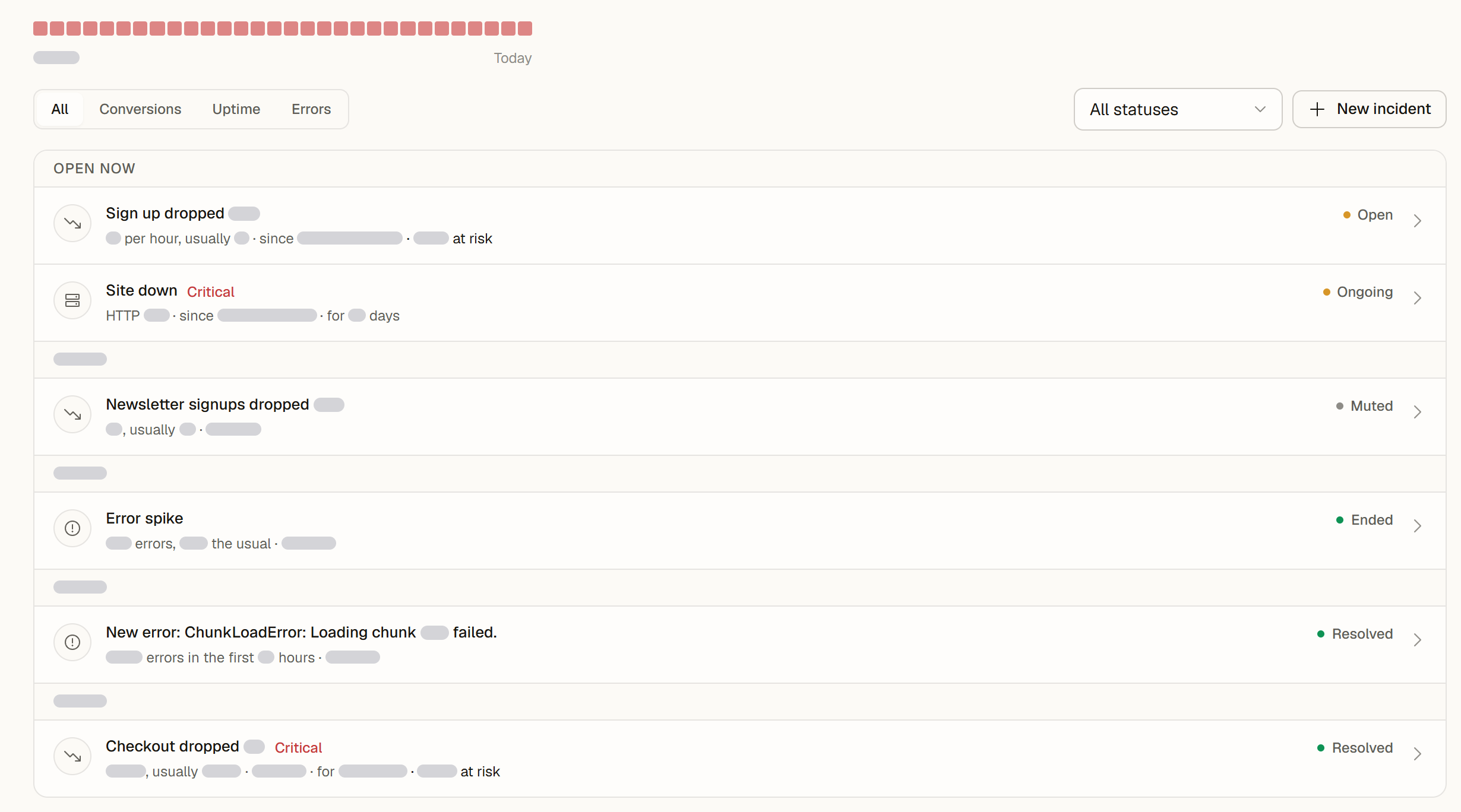
- The summary at the top describes the whole period, for example "All clear. No incidents in the last 30 days." or the open incidents in one sentence. Choose the Period: Last 7 days, Last 30 days or Last 90 days.
- The strip shows the incidents per day (per week for 90 days). Click a day, or focus it and press Enter, to show only that day; the chip next to the list shows all days again.
- The filters narrow the list by Incident type (All, Conversions, Uptime, Errors) and Status (All statuses, Open, Resolved). The summary keeps describing the whole period.
- The list starts with Open now, followed by one group per day. Each incident has a title and an impact line in plain numbers, for example "3 per hour, usually 12" for a conversion drop, "HTTP 503" for an outage or "120 errors, 4x the usual" for a spike. A conversion drop on a goal with a value also shows the revenue at risk in your site's currency.
The details panel
Select an incident to open its details (a side panel on desktop, a sheet from the bottom on phones):
- What happened, in one or two sentences.
- Key numbers, such as the change, the value during the drop and the usual value, or the response and the duration of an outage.
- Timeline, from the start or the first error to detection, muting and resolution.
- Evidence: for a conversion drop, the pages with the biggest change, the most affected segments, changes around the start and errors around the start; for an error spike, the top errors that day. Harmless browser messages are counted but hidden.
- Summary (AI), when one is available, with its confidence.
Links take you on: Open Uptime for an outage, Open in Errors for an error, which opens the Errors tab on that error or search.
Act on an incident
If you can edit the website:
- Mute for 24 h quiets a conversion drop while you look into it.
- Resolve closes it, and Reopen opens it again.
- New incident records a drop you noticed yourself: choose what dropped (a goal, a funnel or a custom name), the severity and the change.
Error spikes and new errors follow the Errors tab: resolve or ignore the error there. Outages close by themselves with the next successful check. People with view access see the same feed with the actions turned off.
AI observations
Patterns the AI noticed in your traffic are listed in a collapsed AI observations section under the feed. They are suggestions, not incidents, so they are not counted in the summary or the strip. Select Dismiss to remove one.
When everything is quiet
When there is nothing to show, What is monitored lists the three sources and their state:
- Uptime monitoring: whether checks ran in the last 24 hours.
- Error tracking: on or off, with Turn on when it is off.
- Conversion drop detection: how many of your goals have enough conversions to watch, with Add a goal.
If your site has no goals or funnels yet, the tab suggests conversion paths found in your traffic. Select Track to follow one as a funnel.