The Errors tab turns the error reports of your site into a short list: one row per error, with how often it happened and how many visits ran into it in the period you selected. Reports that do not come from your own code or from real visitors are kept out of the counts, so the list starts with what needs your attention.
Error tracking is available on Pro, Scale and Enterprise. Your plan sets how much error history you can look at: 60 days on Pro, 120 days on Scale and 180 days on Enterprise.
Where to find it
Open your website from Domains and select Errors in the Reliability group of the sidebar. The tab has two sub-tabs: Errors (this article) and Frustration for rage clicks and dead clicks.
If error tracking is off for the site, the tab says so. People who can edit the website get Turn on error tracking; see JavaScript Error Tracking.
The summary and the tiles
A sentence at the top sums up the period: how many errors need attention, how many are new, how many came back after they were resolved and how many reports were hidden as noise. It is built from the counts, so it always matches the list.
| Tile | What it counts |
|---|---|
| Needs attention | Open errors (new or in progress) that happened in this period. Noise and ignored errors are not counted. |
| New | Errors seen for the first time in this period that still need attention. |
| Visits affected | At least this many visits ran into one of these errors. Repeats of the same error within one hour are stored once, and bot visits are left out. |
| Error events | Error reports in this period, without noise and ignored errors. The change compares them with the period just before, up to the same time of day. When that period lies beyond your plan's error history, the tile shows No comparison. |
Every number on the tab is for the selected period, in your site's time zone. The chart below shows the reports per hour, day or week: real errors in color, noise in light gray. Select Noise in the legend to hide it.
The list
Choose a view at the top of the list:
- Needs attention (the default): open errors, sorted by visits affected.
- All issues: every error in the period, whatever its status.
- Hidden with its count: the reports kept out as noise.
Each error has a readable title, such as "HTTP 500 from /api/checkout", "Could not load /img/hero.webp from cdn.example.com" or "Page not found: /old-pricing". The row shows its kind, the page where it happens most, when it was first seen, a trend line for the period and its status. A New badge marks a first appearance, Came back an error that happened again after it was resolved, and a percentage shows a notable change against the previous period.
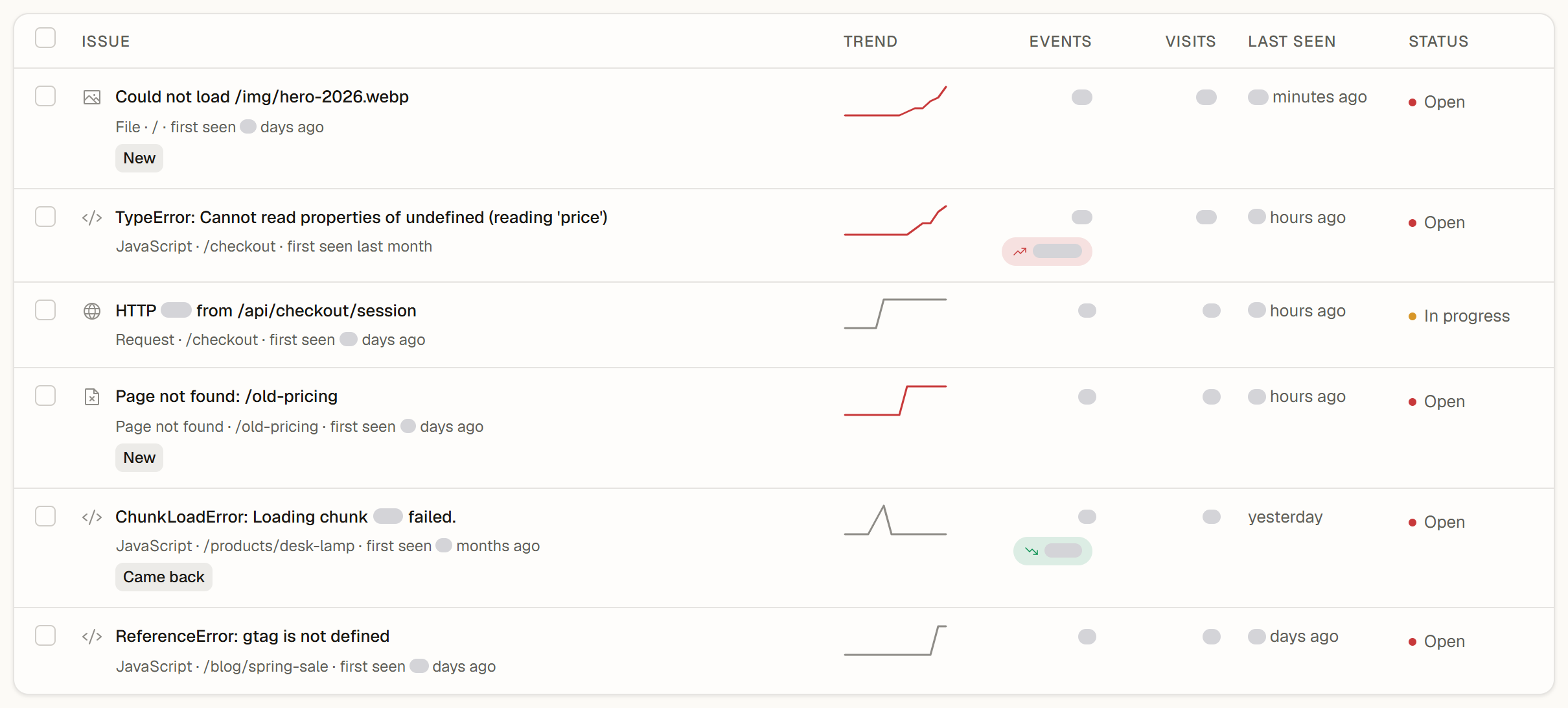
Use Filters to narrow the list by Status, Kind (JavaScript, Request, File, Page not found, Custom) and Sort by (Biggest impact, Most events, Most recent, Newest first). The search box finds errors by message or address. A button under the list shows the next 25 errors. On a phone the list shows one card per error.
What counts as noise
These reports stay out of the counts and the list, and you can still look at them. Open Hidden to see them; the footer under the list names each reason with its count.
Repeats of an error within the same hour are counted but not kept. When Zenovay therefore cannot check every report of an error, the error stays in the list with Possibly noise and the likely reason, so a real error is not hidden as noise.
| Reason | Example |
|---|---|
| Bots and scanners | All reports came from visits flagged as bots. |
| Security scanners | The message contains a typical attack test, such as script injection. |
| Browser extensions | The error was thrown inside an extension a visitor installed. |
| Cross-origin scripts | "Script error." is all a browser reports about a script from another domain. |
| Harmless browser messages | "ResizeObserver loop" or a cancelled request. |
| Connection problems | The visitor's network dropped or changed, for example "Failed to fetch". |
| Other websites | All reports came from another host, such as a preview deployment. |
| Third-party files | A file or request on another domain failed, such as a tracking pixel. |
The details of an error
Select an error to open its details, a side panel on desktop and a sheet from the bottom on phones. They show:
- the events and visits in the period, first and last seen, and the reports since the error first appeared,
- What this means in plain words (or Why it is hidden for noise),
- Reports over time for the period,
- Failing URLs for files, requests and missing pages, with their reports,
- Affected pages and Browsers and devices,
- Recent reports, each with its stack trace and the visitor actions before the error.
Press Esc to close the panel. Upload source maps to see your original file names in stack traces; see Source maps for JS errors.
Change the status
If you can edit the website, use the buttons in the details:
| Status | Use it when |
|---|---|
| Open | The error needs attention. New errors start here; Reopen sets it back. |
| In progress | Someone works on it. Select Mark in progress. |
| Resolved | The change is live. Select Resolve. If the error happens again, it returns with a Came back badge. |
| Ignored | You do not plan to act on it. Select Ignore; ignored errors stay hidden even if they happen again. |
To change several errors at once, select their check boxes and use the bar at the bottom of the list: up to 25 errors per change. People with view access see the same list without the actions.
Shared dashboards and export
When the Errors tab is shared on a public dashboard, it shows the same view read-only, with open or all errors. In your team's dashboard, the export lists the filtered errors with their numbers for the period. See Exporting Analytics Data.