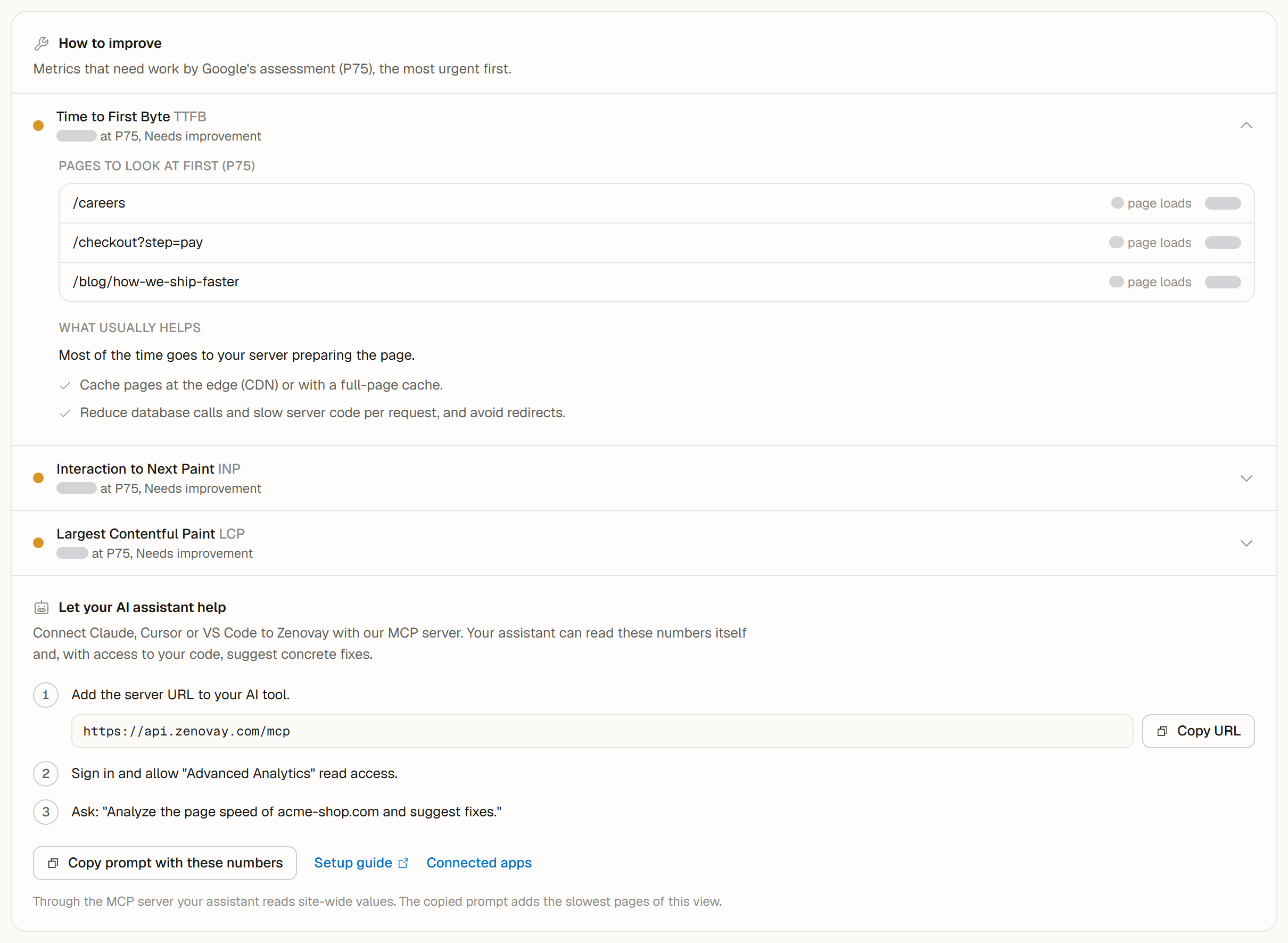
The How to improve section of the Performance tab turns your Web Vitals into a short work list: which metric needs work, which pages to look at first and what usually helps. If you use an AI assistant such as Claude, Cursor or VS Code, you can connect it to Zenovay and let it suggest concrete fixes for your code.
How to improve is on every plan. The range you can look at depends on your plan: the last 24 hours on Free, up to 30 days on Pro, up to 90 days on Scale and Enterprise.
Step 1: find the metric that needs work
Open your website from Domains, select Performance and scroll to How to improve. It lists the metrics that need work by Google's assessment at P75, the most urgent first. Each entry shows the value at P75 and its verdict, for example "3.1s at P75, Needs improvement".
- When every metric is good, the section says so in one line. Check again after big releases or new pages.
- When the view is based on few page loads, a note says to treat the list as a first hint. Choose a longer range for a steadier picture.
Step 2: fix a slow server response first
If Time to First Byte (TTFB) also needs work, the entries for LCP and FCP say so: nothing can appear on screen before the first byte arrives, so a faster server response improves both. The TTFB tips follow the phase that takes the most time (DNS lookup, connection, server or transfer). The Time to First Byte breakdown card shows the four phases.
Step 3: look at the pages that stand out
Under Pages to look at first, each metric lists up to three pages with their value at the selected percentile and their page loads. Start with the pages that matter most for your business, such as pricing, sign-up or checkout. When no single page stands out, the tips apply to the whole site.
To narrow it down further:
- Desktop and mobile compares each metric per device. Select a row to show only that device. See Performance by device.
- By page lists every page with its value and verdict. Filter by Poor to see the pages that need the most work.
Step 4: apply what usually helps
Each entry has a list of common fixes under What usually helps:
| Metric | What usually helps |
|---|---|
| LCP | Compress and resize the main image (AVIF or WebP, the size it is shown at). Load it early with fetchpriority="high" or a preload, and never lazy-load the image at the top. Remove CSS and JavaScript that block rendering above the fold. |
| CLS | Give images, videos and iframes a width and height. Reserve space for banners, ads and embeds. Do not insert content above what is already visible. Load web fonts with a matching fallback. |
| INP | Split long JavaScript tasks and yield to the browser in between. Do less work in click and input handlers. Avoid re-rendering large parts of the page on each interaction. Review heavy third-party scripts such as chat widgets and tag managers. |
| FCP | Remove render-blocking CSS and JavaScript. Inline the critical CSS and load the rest later. Preconnect to the origins the page needs first. |
| TTFB | Cache pages at the edge or with a full-page cache. Serve the site from a CDN close to your visitors. Reduce database calls, slow server code and redirects. Turn on compression for HTML. |
After a release, come back to the tab. The chart shows every day of the range, so you can see when the value changes.
Let your AI assistant help
Let your AI assistant help connects Claude, Cursor or VS Code to Zenovay through the Zenovay MCP server. Your assistant can then read your Web Vitals itself and, with access to your code, suggest concrete fixes.
Add the server URL to your AI tool
Click Copy URL and add
https://api.zenovay.com/mcpas an MCP server in your assistant.Sign in and allow access
Sign in with your Zenovay account and allow "Advanced Analytics" read access.
Ask your question
For example: "Analyze the page speed of example.com and suggest fixes."
Copy prompt with these numbers copies a ready prompt with the values of the current view: the range, the device, the percentile, every metric with its page loads, the TTFB phases and the slowest pages. Paste it into any assistant, connected or not. Page addresses are copied without their query strings. If your browser blocks the clipboard, the text opens in a box so you can copy it yourself.
Through the MCP server your assistant reads site-wide values. The copied prompt adds the slowest pages of the view you are looking at.
Good to know:
- The Performance tab sends nothing to an AI service. The section only copies text, and your assistant works with the access you grant it.
- Setup guide opens the MCP documentation. Connected apps opens your account's security settings, where you review and remove connected assistants.
- The MCP server is available on every plan, with its own daily query limit. See AI message limits.
- The section is shown to signed-in team members. Shared dashboards show How to improve without it.
Common questions
Why does How to improve use P75 when I picked P90? The list of metrics follows Google's assessment, which uses P75. The pages to look at first, the tiles, the chart and the copied prompt use the percentile you picked.
Which pages should I fix first? The pages with the most page loads and a poor value usually bring the biggest gain. A checkout or sign-up page weighs more than a rarely visited archive page.