Zenovay's REST API is documented at docs.zenovay.com. Every request authenticates with a Bearer token (an "API key") that you generate in the dashboard.
Info
The REST API is a paid feature. It's available on Pro, Scale, and Enterprise plans. On the Free plan you can't create or use API keys. Upgrade from Settings → Billing to unlock it.
How API keys are organized
Zenovay keys are personal: each key is created by you and acts on your behalf, across the teams (workspaces) you choose to give it access to. You manage them in your account, and they're revoked automatically when you lose access to a team.
When you create a key you decide two things:
- Which permissions it has — full access, or any combination of read, write, and admin.
- Which teams it can reach — all the teams you belong to, or a specific subset.
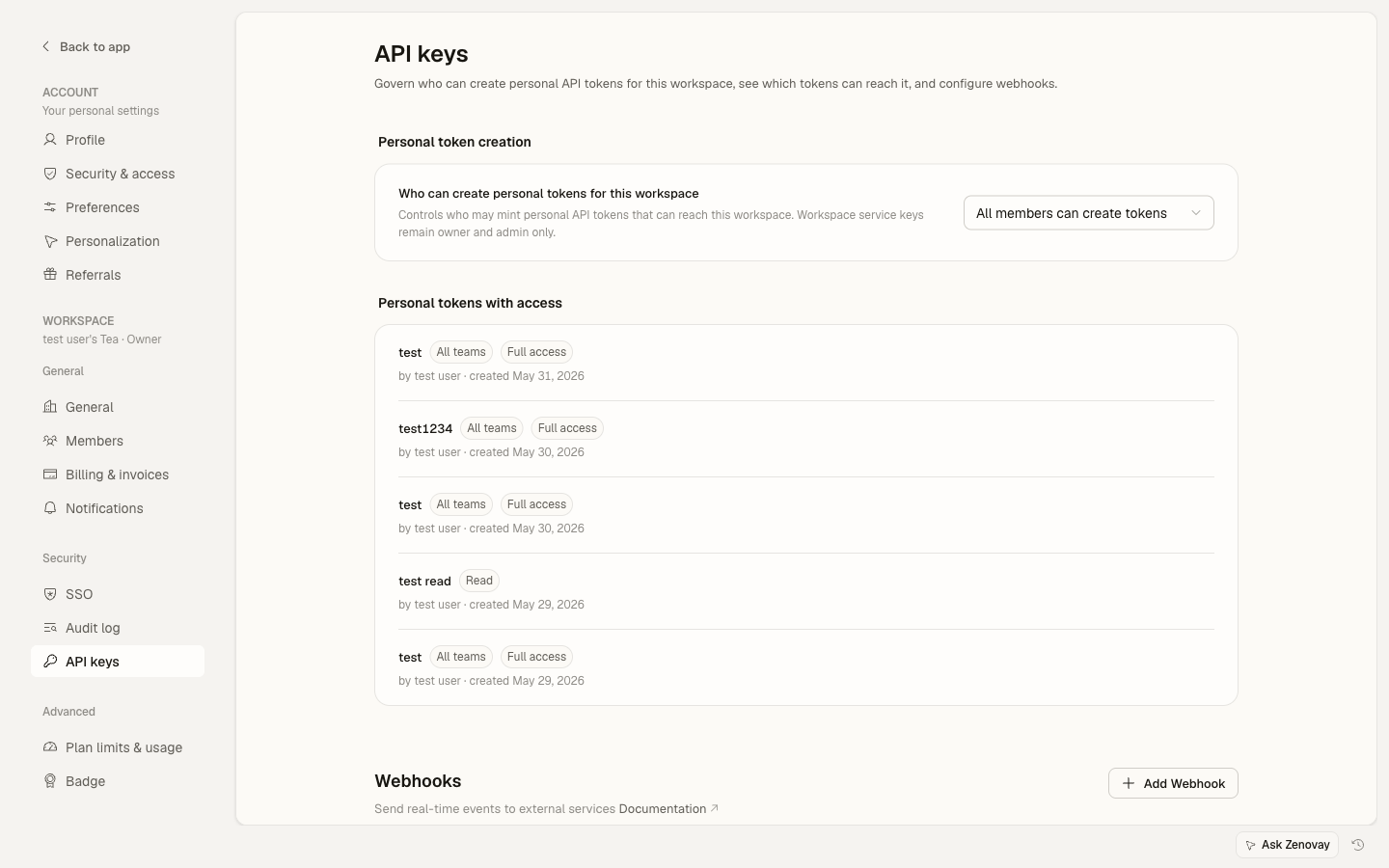
Workspace owners and admins can decide who may create keys that reach the workspace (all members, owners and admins only, or no one). That governance lives on the workspace API page at Settings → Security & access → API keys.
Generating an API key
Open your account security settings
In
app.zenovay.com, go to Settings → Account → Security & access, then find the API keys card.Create a new key
Click Create API key and give it a name that describes the integration (e.g.
Slack alerts,Internal data export). Names can be up to 64 characters.Choose the permissions
- Full access — read and write across everything the key can reach.
- Select — pick any combination of Read (GET analytics endpoints), Write (POST/PATCH/DELETE), and Admin (admin-only endpoints). These are independent: a read-only key, a write-only webhook receiver, and an admin-only automation key are all valid.
The Admin scope can only target teams where you're an owner or admin.
Choose the team access
- All teams — the key works across every team you currently belong to.
- Select teams — lock the key to specific teams. Ideal for scoping a key to one workspace.
Copy the key once
The key starts with
zv_and is shown only once at creation time. Copy it into your secrets manager immediately. We only store a hash, so we cannot recover a lost key.
Hello-world request
Every API call sends the key as a Bearer token in the Authorization header.
curl https://api.zenovay.com/api/external/v1/websites \
  -H "Authorization: Bearer zv_your_actual_key_here"
A successful response returns the websites the key has access to as JSON. If the key is invalid or revoked, you'll get 401 Unauthorized. If your plan doesn't include API access, you'll get 403.
Rate limits
API requests are rate-limited per plan:
| Plan | Requests per minute |
|---|---|
| Free | No API access |
| Pro | 30 |
| Scale | 60 |
| Enterprise | 120 |
Responses include X-RateLimit-Limit and X-RateLimit-Remaining headers, so you can read them and back off as you approach the limit. See API rate limits for details.
Revoking keys
- Revoke — open the key in Settings → Account → Security & access, then choose Revoke. The key stops working immediately.
- Edit — you can rename a key or adjust its permissions and team access from the same place.
- Audit — each key shows when it was created. If you don't recognize a key or no longer use the integration behind it, revoke it.
To rotate a key, create a new one, deploy it, then revoke the old one.
MCP server
Zenovay also speaks the Model Context Protocol, so you can connect Claude Desktop, Cursor, or any MCP client directly to your analytics. MCP is available on all plans (Free, Pro, Scale, and Enterprise), with per-plan daily query limits. It does not use a REST API key — instead you point your client at https://api.zenovay.com/mcp and authorize it once via OAuth (no key to copy). You can review and revoke connected MCP clients under Settings → Account → Security & access. See the MCP documentation on the developer site for the full setup and tool list.
Best practices
- Never commit a key to a public repo. Store keys in a secrets manager, not in source control.
- One key per integration. If a vendor is compromised, you only revoke their key.
- Use the narrowest permissions the integration needs. Reach for read-only unless it has to write.
- Scope by team for integrations that only touch one workspace, so a leaked key can't reach the rest.