Secure your API access with API keys. Create and manage keys for your integrations.
Info
The Zenovay REST API is a paid feature. You need a Pro plan or higher to create and use API keys. Free teams can still send events with the tracking script, but not call the programmatic API.
Authentication Methods
API Keys (Primary)
Authenticate using the X-API-Key header (recommended) or the Authorization: Bearer header:
curl https://api.zenovay.com/api/external/v1/websites \
  -H "X-API-Key: zv_YOUR_API_KEY"
Or using Bearer authentication:
curl https://api.zenovay.com/api/external/v1/websites \
  -H "Authorization: Bearer zv_YOUR_API_KEY"
API keys always start with the zv_ prefix.
Creating API Keys
API keys in Zenovay are personal keys: every request is attributed to you, the user who created the key.
Step 1: Open the API keys section
- Go to Settings → Account → Security & access (
/settings/account/security) - Find the Personal API keys card
- Click New API key
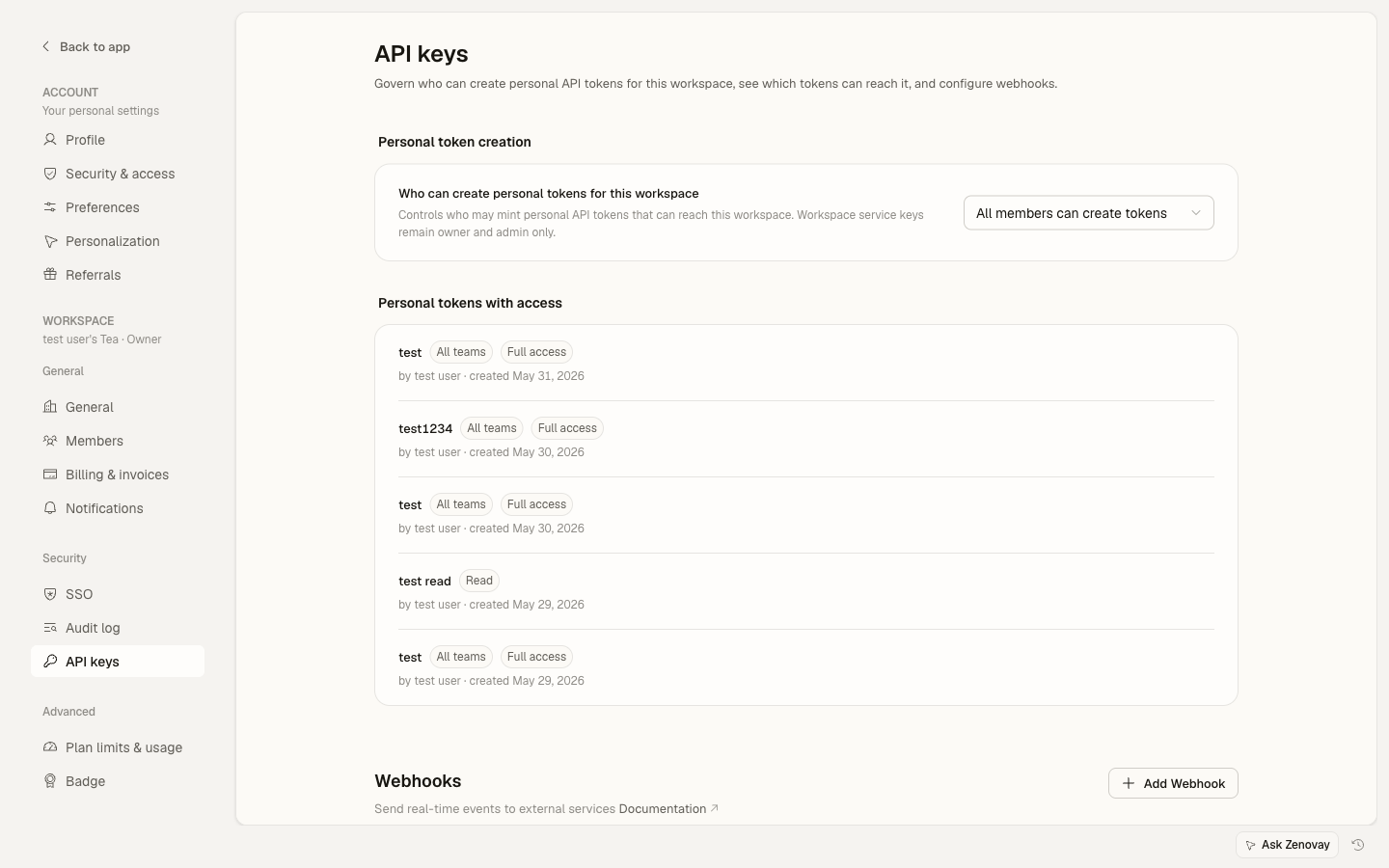
Step 2: Configure the key
The create form asks for three things:
┌─────────────────────────────────────────────────────┐
│ Create API key                                      │
│ ─────────────────────────────────────────────────── │
│                                                     │
│ Key name                                            │
│ [ Production Integration                   ]        │
│                                                     │
│ Permissions                                         │
│ ● Full access                                       │
│ ○ Only select permissions…                          │
│     ☐ Read   ☐ Write   ☐ Admin                      │
│                                                     │
│ Team access                                         │
│ ● All teams you have access to                      │
│ ○ Only select teams…                                │
│                                                     │
│ [Cancel] [Create]                                   │
└─────────────────────────────────────────────────────┘
- Permissions controls what the key can do. Full access grants every scope; or pick individual scopes (Read, Write, Admin). The External API is read-only today, so a Read key is enough for analytics.
- Team access controls which workspaces the key can reach. Leave it on All teams you have access to, or restrict it to specific teams.
Step 3: Save your key
Important: the full key is shown only once. Copy it before you close the dialog.
┌─────────────────────────────────────────────────────┐
│ Your new API key                                    │
│ ─────────────────────────────────────────────────── │
│                                                     │
│ This API key will not be visible in the future.    │
│ Please copy it now.                                 │
│                                                     │
│ zv_abc123xyz789...                                 │
│                                                     │
│ [Copy]                                              │
│                                                     │
└─────────────────────────────────────────────────────┘
Key Format
All API keys use a single format:
- Prefix:
zv_ - Keys are stored as SHA-256 hashes for security
- The full key is only shown once at creation time
There is no separate test/sandbox key type. To separate development and production, create multiple keys with descriptive names.
Key Permissions
When you create a key you choose its permissions (scopes) and its team access.
| Scope | What it grants |
|---|---|
| Full access | Every scope |
| Read | Read-only access to the External API |
| Write | Write endpoints (POST/PATCH/DELETE) |
| Admin | Admin-only endpoints (requires owner or admin role on the team) |
The External API surface documented below is read-only today, so a Read (or Full access) key is all you need for analytics. Tracking ingestion does not use an API key at all; it uses the tracking script.
What API Keys Can Access
| Endpoint Category | Endpoints |
|---|---|
| Analytics | GET /analytics/:websiteId (overview, visitors, pages, countries, technology) |
| Websites | GET /websites, GET /websites/:websiteId |
| Heatmaps | GET /heatmaps/:websiteId/pages |
| Session Replays | GET /replays/:websiteId/sessions |
| Error Groups | GET /errors/:websiteId/groups |
| Usage | GET /usage |
Team Access Restrictions
All teams
By default a key can reach every team (workspace) your account belongs to, and every website inside those teams:
- Simplest setup
- Good for internal tools that read across your workspaces
Selected teams
To limit a key, choose Only select teams… and pick the teams it may reach. The key then works only for websites that belong to those teams.
Use Cases for Restrictions
| Scenario | Setting |
|---|---|
| Key for one workspace only | Only select teams (pick that team) |
| Internal dashboard across all your workspaces | All teams you have access to |
Managing Keys
View All Keys
The Personal API keys card lists each key with its scope, masked prefix, and last-used time:
┌─────────────────────────────────────────────────────┐
│ Personal API keys                    [+ New API key]│
│ ─────────────────────────────────────────────────── │
│                                                     │
│ Production    [Full access]   zv_abc…   used 2m ago │
│ Dashboard     [Read]          zv_def…   used 1h ago │
│ Client A      [Read]          zv_ghi…   used 5d ago │
│                                                     │
└─────────────────────────────────────────────────────┘
Key Details
Click a key to open its detail view:
- Name, scope, and team access
- Created and last-used timestamps
- Server-side activity (accepted-event counts and recent events for this key)
Edit a Key
From the detail view's menu (the … button) choose Edit to rename the key or change its scopes and team access, then save.
Revoke a Key
If a key is compromised or unused:
- Open the key's detail view
- From the … menu, click Revoke
- Confirm
The key is invalidated immediately. To replace a key, revoke the old one and create a new one.
Key Security
Best Practices
| Practice | Why |
|---|---|
| Use environment variables | Don't hardcode |
| Grant the narrowest scope and team access | Limit blast radius |
| Separate keys per integration | Isolate dev/prod and clients |
| Revoke unused keys | Reduce exposure |
| Watch the activity view | Detect anomalies |
Environment Variables
Store keys securely:
# .env file (never commit!)
ZENOVAY_API_KEY=zv_abc123...
// Use in code
const apiKey = process.env.ZENOVAY_API_KEY;
Rotating a Key
Zenovay does not regenerate a key in place. To rotate:
- Create a new key
- Update your applications to use it
- Verify everything works
- Revoke the old key
Using API Keys
cURL
curl https://api.zenovay.com/api/external/v1/websites \
  -H "X-API-Key: zv_YOUR_API_KEY"
JavaScript
const response = await fetch('https://api.zenovay.com/api/external/v1/websites', {
  headers: {
    'X-API-Key': process.env.ZENOVAY_API_KEY,
  }
});
Python
import requests

response = requests.get(
    'https://api.zenovay.com/api/external/v1/websites',
    headers={'X-API-Key': api_key}
)
Troubleshooting
The API returns errors in the shape { "error": { "message": "...", "code": "..." } }.
Missing or invalid API key
{
  "error": {
    "message": "Invalid API key",
    "code": "UNAUTHORIZED"
  }
}
Returns 401. Check:
- The key is copied correctly, with the
zv_prefix - No extra spaces or line breaks
- The key has not been deleted
- You sent it as
X-API-KeyorAuthorization: Bearer
Plan does not include API access
{
  "error": {
    "message": "The Zenovay API requires a paid plan. Upgrade to Pro or higher to use API keys.",
    "code": "API_PAID_PLAN_REQUIRED"
  }
}
Returns 403. The External API requires a Pro plan or higher. Upgrade your workspace, then create a key.
Forbidden for this website
{
  "error": {
    "message": "Forbidden",
    "code": "FORBIDDEN"
  }
}
Returns 403. The key does not have access to the requested website, because the website belongs to a team outside the key's team access. Use a key whose team access covers that website, or widen the key's team access.
Activity & Usage
Open a key's detail view to see its server-side activity: accepted-event counts (last 24 hours, last 7 days, and all time) and the most recent events attributed to that key. This is useful for confirming a key is live and spotting unexpected usage.