Once your SSO connection is set up and tested, you can require SSO so your team signs in through your identity provider (IdP) instead of a Zenovay password. This guide explains exactly who enforcement applies to, why owners and admins always keep a password as a backup, and how members with a personal email address sign in.
Info
Enforcing SSO is the last step, not the first. Configure and verify your provider first using SAML configuration or OAuth / OIDC setup, confirm a test sign-in works, and only then turn on enforcement.
How SSO routing works (the key idea)
Zenovay decides whether to send someone to your IdP based on the domain of the email address they type in at sign-in, matched against the domains you have verified for your SSO provider.
- If the email's domain matches your verified domain (for example
@acme.com), Zenovay routes that person to your IdP. - If it does not match (for example a personal
@gmail.comaddress), Zenovay cannot route them to your IdP, because your IdP does not manage that domain.
This single rule explains every case below.
What "Enforce SSO" changes
| Enforcement OFF | Enforcement ON | |
|---|---|---|
| Member with a verified-domain email | Can choose password or SSO | Must sign in through your IdP |
| Owner or admin with a verified-domain email | Can choose password or SSO | Keeps password access (break-glass) and can still use SSO |
| Anyone (any email) | "Continue with SSO" button always available | "Continue with SSO" button always available |
With enforcement on, a regular member who enters a verified-domain email is sent straight to your IdP and can no longer fall back to a Zenovay password.
Owners and admins keep a password (break-glass)
Owners and admins of the workspace are intentionally exempt from enforcement and can always sign in with their password.
Info
This is a safety mechanism, not an oversight. If your IdP ever has an outage or a misconfiguration (an expired certificate, a changed endpoint), strict enforcement would otherwise lock out everyone, including the very people who need to sign in to fix the SSO settings. Keeping a password path for owners and admins guarantees you can always get back in.
Owners and admins can still sign in through SSO whenever they want, using the Continue with SSO option on the sign-in screen. Enforcement simply does not force it for them.
Warning
The trade-off is worth understanding: because an owner or admin can sign in with a password, that password is a way into the workspace that does not pass through your IdP. Keep owner and admin accounts protected with strong, unique passwords and multi-factor authentication, and keep the number of admins small.
Members with a personal email address
A teammate who was added with an address that is not on your verified domain, for example a contractor using a personal @gmail.com, cannot use SSO, because that email does not belong to your identity provider. They sign in with their Zenovay password as normal.
This is expected behavior, not a gap to work around. SSO is tied to the domains you verify, so anyone outside those domains is simply not an SSO user. If you want everyone to authenticate through your IdP, make sure every member is invited with an email on a domain you have verified for SSO.
Anyone can still choose SSO manually
The Continue with SSO button on the auth.zenovay.com sign-in screen is always available. A user can select it, enter your company domain, and authenticate through your IdP, regardless of enforcement. Enforcement only controls whether a verified-domain member is required to go through SSO when they type their email.
Turning enforcement on
Verify your domain first
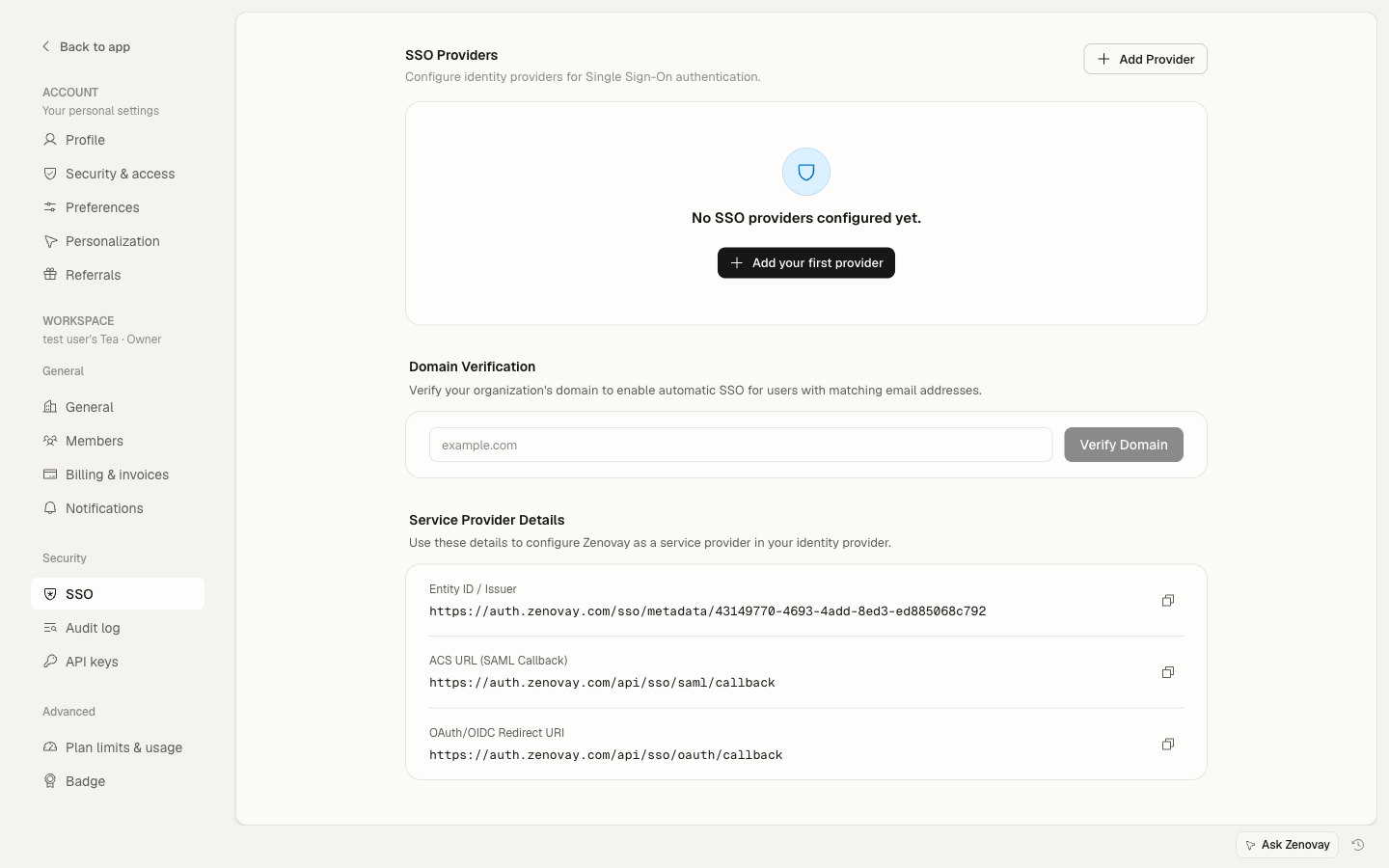
In Settings → Security → SSO, add and verify the email domain in the Domain Verification section (you add a TXT record to your DNS and click Check DNS). Enforcement has no effect until at least one domain is verified.
Confirm a test sign-in works
Use the provider's Test connection option, or sign in from an incognito window with a verified-domain email, and confirm you land back in the dashboard. Never enforce an SSO connection you have not successfully tested.
Enable enforcement
Make sure the provider is enabled, then open the provider's More menu and select Enforce SSO, and confirm in the dialog.
Before turning on enforcement, make sure at least one owner can sign in with email and password as a backup, so an identity-provider outage can never lock your whole workspace out.
Turning enforcement off
If you need members to use a password again (for example while you reconfigure your IdP), open the provider's More menu in Settings → Security → SSO and turn Enforce SSO back off. Verified-domain members can then sign in with a password again. The SSO connection itself stays in place, so you can re-enable enforcement at any time.
New users and SSO
When SSO is enforced and a new person from your verified domain signs in for the first time, their account is created automatically (Just-In-Time provisioning). They are not added to your workspace with a role automatically, so an owner or admin still adds them to the team and assigns a role from Settings → Workspace → Members. See SAML configuration for details.
Troubleshooting
A member is asked for a password instead of being sent to SSO
- Confirm their email domain is verified in Settings → Security → SSO (an unverified domain is never routed to SSO).
- Confirm they are using their company email, not a personal address.
- Remember that owners and admins are intentionally exempt and will see the password screen by design. They can use Continue with SSO to sign in through the IdP.
An admin wants to be forced through SSO as well
Enforcement deliberately exempts owners and admins as a break-glass. If you need an account to be subject to enforcement, give it the member role rather than admin, or sign in through Continue with SSO manually.
Everyone is locked out after an IdP change
An owner can still sign in with email and password (the break-glass path). Sign in as the owner, go to Settings → Security → SSO, fix or temporarily disable enforcement, and update the provider configuration. Then re-test and re-enable.