In Zenovay, your team and its websites live inside a workspace. Workspace settings are where you rename it, set a logo, manage who has access, and review billing and security for everyone on the team.
Where workspace settings live
Settings are grouped into sections in the left-hand Settings navigation:
| Section | URL | What it covers |
|---|---|---|
| Workspace | /settings/workspace | Name, logo, members, billing, notifications |
| Security | /settings/security | SSO, audit log, and team API keys (with webhooks) |
| Advanced | /settings/advanced | Plan limits and usage, and the built-with-Zenovay badge |
The Account sections (/settings/account) hold your own personal profile,
password, login sessions, and preferences. Those are per-person, not
workspace-wide. See Roles and permissions for who
can change what.
General
Open Settings → Workspace to edit the basics that the whole team sees.
Workspace name and logo
| Setting | Description | Who can edit |
|---|---|---|
| Name | Display name shown across the dashboard | Owner, Admin |
| Logo | A small avatar/logo for the workspace | Owner, Admin |
To update them:
- Go to Settings → Workspace.
- Edit the Name field and click Save, or click Upload next to the logo to choose an image.
Logo requirements:
- PNG, JPG, WebP, or GIF
- Up to 2 MB
- A square image looks best
Info
The workspace name and logo are how your team is labelled inside Zenovay. If you need to fully white-label dashboards for clients (custom domain, removing Zenovay branding), that is a separate Enterprise feature, covered in Custom Branding.
Members
Manage who can access the workspace from Settings → Workspace → Members.
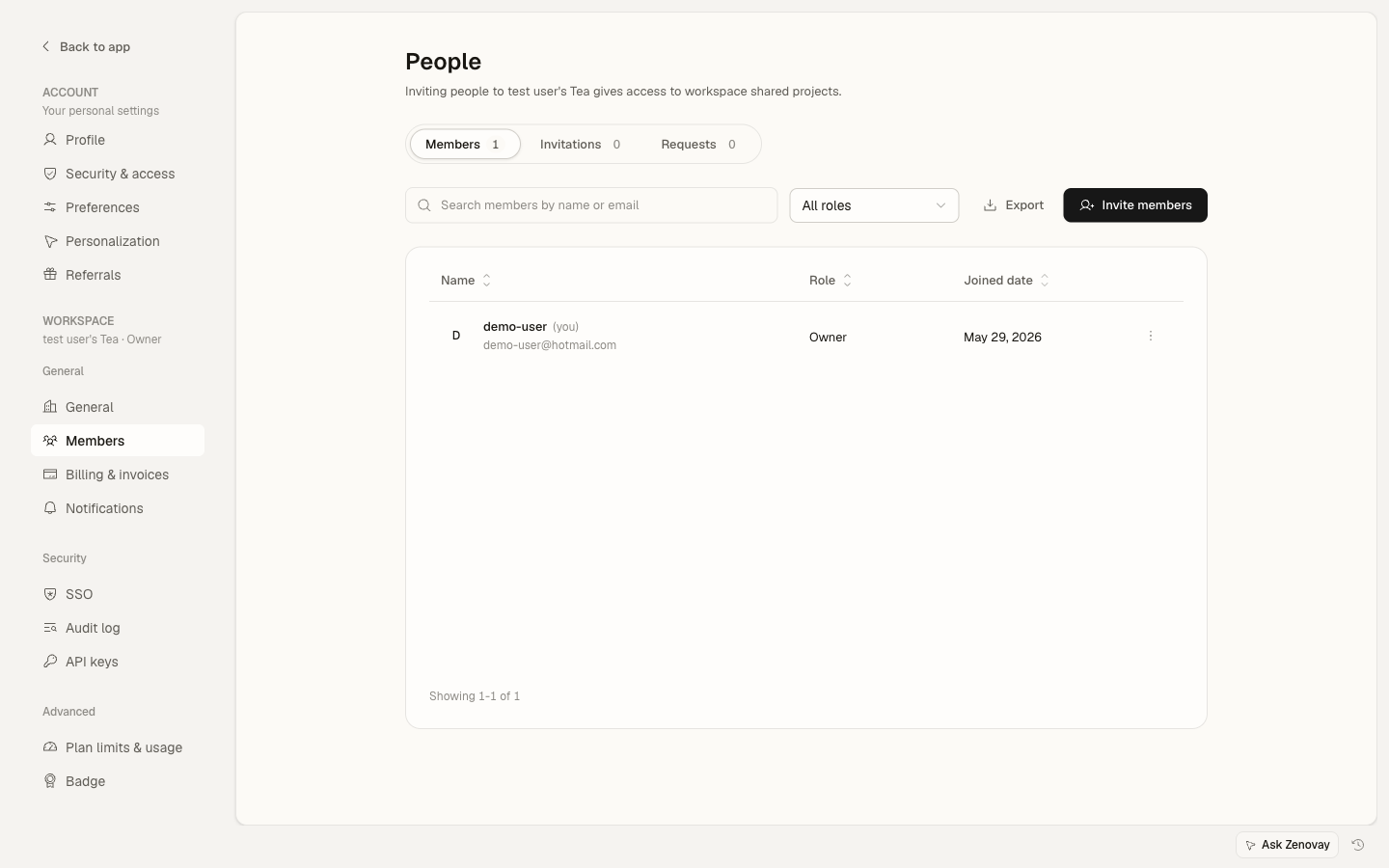
Workspace roles are:
| Role | Can do |
|---|---|
| Owner | Everything, including billing, deleting the workspace, transferring ownership, and managing members |
| Admin | Manage websites, members, and settings - everything except billing, deleting the workspace, and transferring ownership |
| Editor | Create and edit websites and settings, view analytics - no member management or billing |
| Viewer | Read-only access to dashboards |
For the full breakdown, see Roles and permissions and Inviting members.
Notifications
Decide who on the team receives workspace notifications (such as alerts and digests) from Settings → Workspace → Notifications.
- The workspace owner is always a default recipient.
- Owners and admins can add or remove other team members as recipients.
Your own per-account email preferences (which messages you personally get) are separate and live under Settings → Account → Notifications.
Billing and plan
Billing lives at Settings → Workspace → Billing (Owner only). From there you can:
- View your current plan and usage
- Update your payment method
- Upgrade or change your subscription
See Plans overview for plan details.
Data retention
How long Zenovay keeps your analytics data depends on your plan:
| Plan | Retention |
|---|---|
| Free | 1 year |
| Pro | 2 years |
| Scale | 4 years |
| Enterprise | Custom |
Retention is applied automatically based on the active plan. Upgrading extends the retention window for new data.
Security
Workspace-wide security lives under Settings → Security:
- SSO - single sign-on configuration (Scale and Enterprise)
- Audit log - a record of important actions taken in the workspace
- API keys - team API keys and webhooks (paid plans)
For audit-log details, see Audit logs.
Info
Some security settings are per person, not workspace-wide. Your own login sessions, multi-factor authentication, and any connected AI agents (MCP) live under Settings → Account → Security. SSO is available on Scale and Enterprise, and workspace-wide MFA enforcement is an Enterprise feature - see Enforcing MFA and SAML configuration.
Per-website settings
A few things people often look for are configured per website, not at the workspace level. Open a website from Domains, then open its Settings:
- Timezone - used for that website's report date ranges (under the website's General settings)
- Revenue currency - for revenue tracking (under the website's Revenue settings)
- Tracking options - cookieless mode, localhost tracking, exclusions, and more
This means different websites in the same workspace can use different timezones.
Troubleshooting
Changes are not saving
If an edit does not stick:
- Check that your role allows it (most workspace edits are limited to Owners and Admins, and billing is Owner-only)
- Refresh the page and try again
- Confirm you are editing the right workspace if you belong to several
Logo not displaying
If your uploaded logo does not appear:
- Make sure it is a supported format (PNG, JPG, WebP, GIF) under 2 MB
- Try a different image
- Clear your browser cache and reload