A funnel breaks a key journey, like signup or checkout, into ordered steps so you can see exactly where visitors continue and where they drop off. This guide covers how to read a multi-step funnel in Zenovay and how to act on what it shows.
Where funnels live
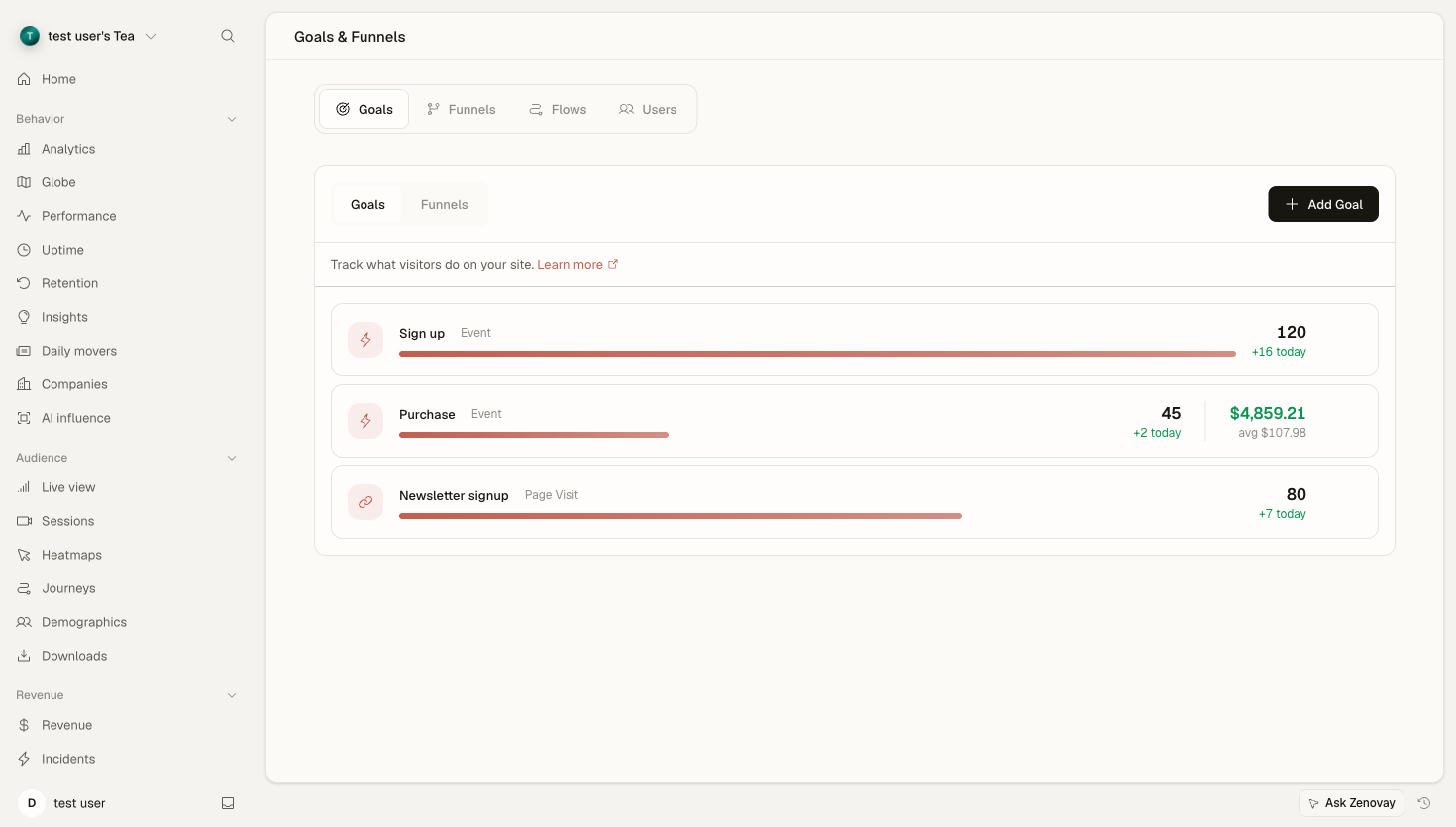
Open a website's dashboard at Domains → (your site) → Journeys, then select the Funnels sub-tab. The funnel chart appears on the left and the list of your funnels expands from the right edge. Pick a funnel to load its step-by-step breakdown.
Understanding Multi-Step Funnels
What Makes a Good Funnel?
Effective funnels are:
- Sequential: A clear, ordered path from start to finish
- Measurable: Each step maps to a page, goal, or event Zenovay can detect
- Actionable: You can change each step
- Meaningful: It reflects a real journey your visitors take
Funnel Anatomy
Entry Step → Step 2 → Step 3 → Final Step
    ↓          ↓         ↓
   Exit       Exit      Exit
How steps are defined
When you create a funnel (the Add funnel button in the Funnels sub-tab), each step is one of three types:
| Step type | Matches when a visitor… |
|---|---|
| Page visit | views a URL matching your pattern (exact, contains, starts with, ends with, or regex) |
| Goal | completes one of your saved goals |
| Event | fires a named custom event |
A funnel has between 2 and 7 steps. Progress is sequential: a visitor must reach each step in order for it to count toward the next.
Key Questions
For each step, ask:
- How many visitors reach this step?
- What percentage continue to the next step?
- Where is the biggest drop-off?
Reading Funnel Reports
The Funnel Visualization
| Element | Meaning |
|---|---|
| Bar height | Visitors who reached the step, relative to step 1 |
| Step label | Visitor count, step name, and retention percentage |
| Drop-off badge | Percentage lost moving from one step to the next |
| Conversion rate (header) | Overall start-to-finish completion rate |
Hover any step to see its visitor count, the drop-off from the previous step, the step-to-step conversion rate, and the top traffic sources and top countries for visitors at that step.
Sample Funnel Data
Step 1: Product View     10,000 (100%)
              ↓ 60% drop-off
Step 2: Add to Cart       4,000 (40%)
              ↓ 50% drop-off
Step 3: Checkout          2,000 (20%)
              ↓ 40% drop-off
Step 4: Purchase          1,200 (12%)

Overall conversion: 12%
Interpreting the Numbers
| Metric | Value | Meaning |
|---|---|---|
| Step 1 → 2 | 40% reach | 60% leave without adding to cart |
| Step 2 → 3 | 50% reach | Half of cart additions abandon |
| Step 3 → 4 | 60% reach | 40% abandon at checkout |
| Overall | 12% | 12% of product viewers purchase |
Time Window
Above the funnel chart, a period selector lets you analyze a different range, such as the last 7, 14, or 30 days, or 6 or 12 months. The longer windows depend on your plan and data retention; locked options show an upgrade prompt.
Changing the window recalculates every step so you can compare recent performance against a longer baseline.
Per-step Breakdown
Each step's hover tooltip enriches the raw counts with:
- Top sources: the referrers driving visitors who reached that step
- Top countries: where those visitors are located
This helps you tell who is dropping off, not just how many. For example, if mobile-heavy referrers concentrate at the step with the worst drop-off, that points you toward a mobile-specific fix.
Drop-off and the Worst Step
The drop-off badge between each pair of steps shows the share of visitors lost there. The single largest drop is usually where the most opportunity lives. Start your investigation at that step rather than spreading effort evenly across the whole funnel.
For a deeper look at why visitors leave a step, see Funnel drop-off analysis.
Funnel Insights
Below the chart, the insights panel surfaces two things:
- Suggested funnels: Zenovay analyzes your real conversion paths and proposes 2 to 6 step funnels you can create with one click.
- Funnel health: a short, auto-generated summary of the selected funnel's biggest drop-off point, alongside the source, country, device, and browser mix for that step to help you spot what might be causing it.
These are starting points for investigation, not guarantees. Treat them as a prompt to dig into the data.
Auto-discovered Funnels
If your developers define funnel steps directly in the tracking code, Zenovay creates the funnel automatically and marks it as code-managed. You can rename steps and edit the funnel in the dashboard afterward. A code-managed funnel that hasn't been seen in your tracking for several days is flagged as stale so you know it may no longer be firing.
Connecting to Sessions
To understand the "why" behind a drop-off, pair funnel analysis with session replay. Open the Sessions tab for the same website and filter recordings to the page or behavior you're investigating, then watch how real visitors move through that step.
Session replay requires a Pro plan or higher.
Optimization Framework
A simple loop works well:
- Find the step with the biggest drop-off in the funnel chart.
- Investigate with session replays and heatmaps for that step's pages.
- Change one thing, for example, simplify a form or fix an error.
- Evaluate by switching the funnel's time window before and after the change.
Step Improvement Checklist
For each problem step:
- Review session recordings for that page
- Analyze heatmaps for the page
- Check error and frustration signals
- Test the page on different devices
- Simplify the step if possible
Best Practices
- Change one thing at a time so you can attribute the result.
- Compare the same time window before and after a change.
- Keep step definitions stable. Editing steps changes what the historical numbers mean.
- Note what you changed and what happened, so learnings compound.