Funnels visualize how visitors progress through multi-step journeys. Identify where users drop off and optimize your conversion flow.
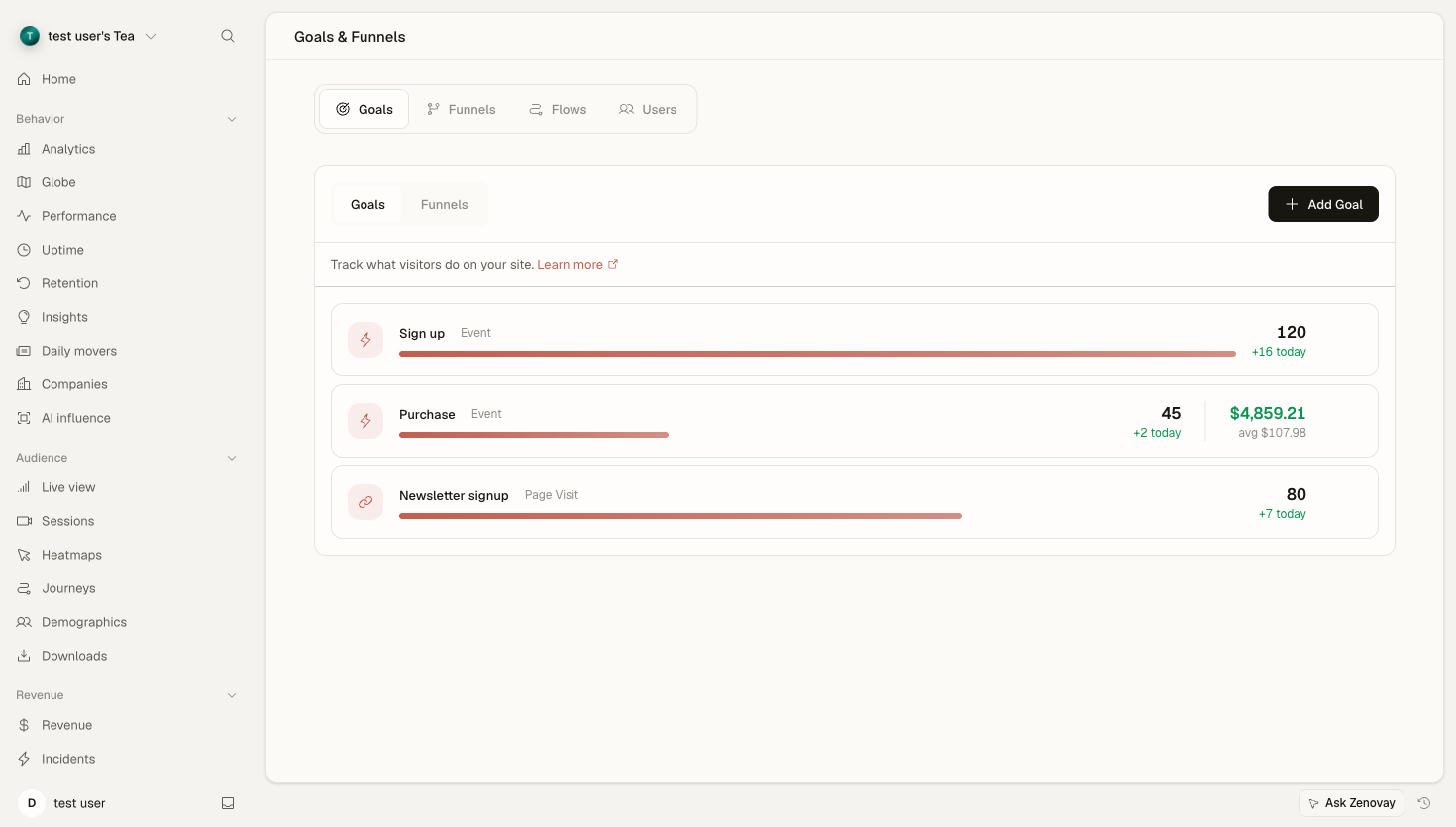
What Are Funnels?
Funnels track progression through steps:
Step 1: Homepage       (1000 visitors)
           ↓
Step 2: Pricing        (400 visitors) - 60% drop-off
           ↓
Step 3: Signup         (150 visitors) - 62.5% drop-off
           ↓
Step 4: Complete       (75 visitors)  - 50% drop-off
Key Metrics
| Metric | Description |
|---|---|
| Step conversion | % progressing to next step |
| Overall conversion | % completing entire funnel |
| Drop-off rate | % leaving at each step |
Creating a Funnel
Funnels live in each website's dashboard, under the Journeys tab.
Open the Journeys tab
Open your website's dashboard, select the Journeys tab, then the Funnels sub-tab.
Start a new funnel
Click Add Funnel.
Name Your Funnel
Give it a descriptive name (e.g., "Checkout Flow").
Add Steps
Define each step in the journey. A funnel needs between 2 and 7 steps.
Configure Each Step
Set the trigger for each step (see below). Drag steps by the handle to reorder them.
Save Funnel
Click Create Funnel to save it.
Defining Funnel Steps
Step Types
| Type | Best For |
|---|---|
| Page Visit (URL match) | Visiting a specific URL |
| Goal | Completing an existing goal |
| Custom Event | A custom JavaScript event |
Page Visit Steps
Match visits by URL pattern. Choose how the pattern is matched: Exact, Contains, Starts with, Ends with, or Regex.
| Step | Match | URL Pattern |
|---|---|---|
| Product Page | Starts with | /products/ |
| Cart | Exact | /cart |
| Checkout | Exact | /checkout |
| Confirmation | Contains | /order/confirmation |
Goal Steps
Use existing goals as steps:
| Step | Goal |
|---|---|
| Step 1 | "Add to Cart" goal |
| Step 2 | "Begin Checkout" goal |
| Step 3 | "Purchase Complete" goal |
Event Steps
Track custom events by name:
| Step | Event Name |
|---|---|
| Step 1 | video_started |
| Step 2 | video_50_percent |
| Step 3 | video_completed |
| Step 4 | cta_clicked |
Common Funnel Examples
E-commerce Purchase
| Step | Trigger | Description |
|---|---|---|
| 1 | Page: /products/ | View product |
| 2 | Event: add_to_cart | Add item |
| 3 | Page: /cart | View cart |
| 4 | Page: /checkout | Begin checkout |
| 5 | Page: /confirmation | Complete purchase |
SaaS Signup
| Step | Trigger |
|---|---|
| 1 | Page: /pricing |
| 2 | Page: /signup |
| 3 | Event: form_submitted |
| 4 | Page: /welcome |
| 5 | Event: first_action |
Lead Generation
| Step | Trigger |
|---|---|
| 1 | Page: Landing page |
| 2 | Event: cta_clicked |
| 3 | Page: Form page |
| 4 | Event: form_submitted |
| 5 | Page: Thank you page |
Content Engagement
| Step | Trigger |
|---|---|
| 1 | Page: Blog post |
| 2 | Event: scroll_50 |
| 3 | Event: related_article_clicked |
| 4 | Event: newsletter_signup |
How Funnels Are Counted
Zenovay funnels are sequential: a visitor enters at step 1 and is counted for each later step only after completing the steps before it, in order. Steps recorded out of order, or that skip ahead, aren't counted toward the funnel. This keeps drop-off rates honest, the count at each step reflects people who actually reached it through the funnel.
Step order isn't fixed once you save it, drag steps by the handle in the editor to reorder them, then save.
Viewing Funnel Data
Open the Journeys tab → Funnels to see your funnels. Use the period selector at the top of the chart to choose the date range the funnel is measured over.
Funnel Visualization
The funnel chart shows:
- Each step with its visitor count
- Drop-off percentage between steps
- Overall conversion rate
- A visual bar for each step
Step Details
Hover over a step to see a breakdown for the visitors who reached it, including its top traffic sources and top countries. This helps you spot whether a particular source or region drops off harder at a given step.
Analyzing Funnels
Identify Bottlenecks
Look for:
- Steps with unusually high drop-off
- Unexpected exits
AI Funnel Health
Pro PlanZenovay can generate a short health summary for a funnel, calling out the biggest drop-off point and likely causes based on the per-step device, browser, country, and source breakdown. It can also suggest funnels automatically from the conversion paths it already sees in your data, so you can create the ones that matter with a click.
Track Trends
Switch the period selector to compare different windows and watch how conversion changes:
- Week over week
- Before and after a change
- Seasonal patterns
Optimizing Funnels
High Drop-Off Step
If a step has high drop-off:
- Watch sessions for visitors who reached that step (Pro)
- Identify friction in the recordings
- Analyze heatmaps on that page (Pro)
- Test improvements
Slow Step
If progression stalls on a step:
- Check page load time
- Review content clarity
- Simplify the step
- Reduce requirements
General Tips
| Issue | Solution |
|---|---|
| High drop-off | Simplify, reduce friction |
| Slow progression | Speed up, add urgency |
| Low overall conversion | Review the entire flow |
Best Practices
Keep Funnels Focused
| Bad | Good |
|---|---|
| Too many steps (max 7) | 3-6 steps |
| Multiple goals | Single goal |
| Vague steps | Clear actions |
Name Steps Clearly
| Bad | Good |
|---|---|
| Step 1 | Homepage Visit |
| Step 2 | Product View |
| Page | Checkout Started |
Start with Key Funnels
Priority funnels:
- Main conversion (purchase/signup)
- Lead generation
- Key feature adoption
Review Regularly
- Weekly quick check
- Monthly deep dive
- After major changes
Troubleshooting
Low Funnel Volume
If a funnel shows few entries:
- Check that the step triggers are correct
- Verify data is being collected
- Expand the date range
Steps Out of Order
If a funnel doesn't count the way you expect:
- Remember funnels are sequential, visitors must reach each step through the ones before it
- Verify the step triggers
- Reorder the steps to match real visitor behaviour
Missing Conversions
If the final step is low:
- Verify tracking on the final page
- Check for redirect issues
- Test the flow yourself