Access your billing history to track expenses, download invoices, and keep your accounting records up to date.
Viewing Invoice History
Access Your Invoices
- Go to Settings → Billing in
app.zenovay.com - Scroll to the Invoices section
- View the list of past invoices, newest first
Invoices are managed per workspace. You need to be a workspace owner or admin to view and download them.
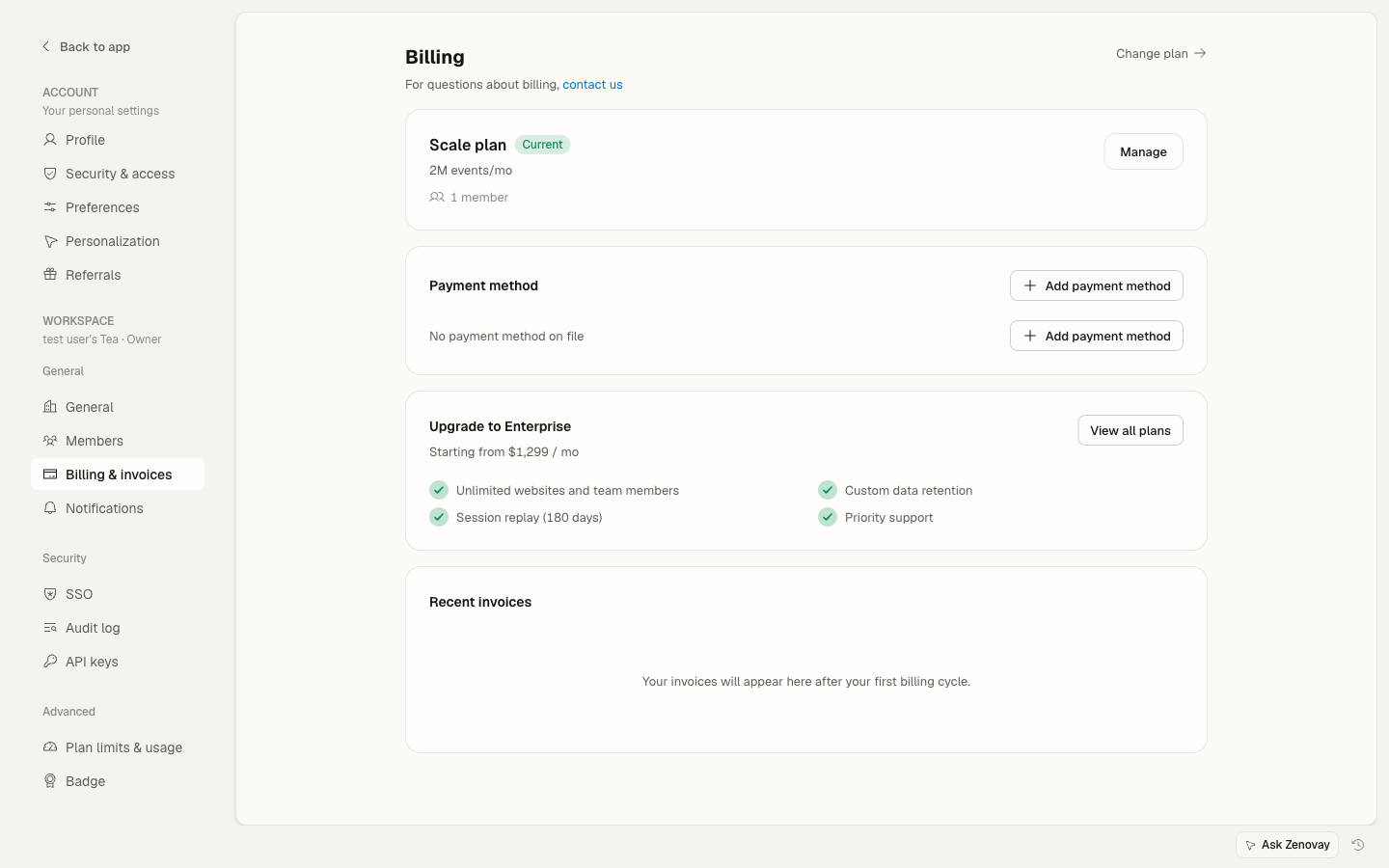
Invoice List
Each entry shows:
| Field | Description |
|---|---|
| Invoice | Stripe invoice number |
| Date | When the invoice was issued |
| Amount | Amount paid |
| Status | Paid or the current Stripe status |
| Download | PDF download button |
Downloading Invoices
Individual Invoice
- Find the invoice in your history
- Click the download (PDF) icon
- The invoice PDF downloads to your device
Each PDF is generated by Stripe and includes the full invoice detail (invoice number, issue date, billing details, line items, and totals).
Invoice Details
What's on Each Invoice
Invoices are issued by Stripe, our payment processor. Each PDF includes:
| Section | Content |
|---|---|
| Invoice Number | Unique identifier |
| Issue Date | When the invoice was created |
| Bill To | Your billing details |
| Description | Service / plan details |
| Period | Service period covered |
| Subtotal | Amount before tax |
| Tax | Applicable taxes (if any) |
| Total | Final amount |
| Payment Status | Paid / unpaid |
Sample Invoice Information
Invoice #INV-2026-001234
Issue Date: June 13, 2026
Bill To: Your Company Name

Description: Zenovay Pro Plan - Monthly
Period: June 13 - July 12, 2026
Amount: $20.00

Subtotal: $20.00
Tax (if applicable): $0.00
Total: $20.00

Status: PAID
Payment Date: June 13, 2026
Types of Charges
Subscription Charges
Regular charges for your plan:
- Monthly subscription
- Annual subscription
- Plan upgrades
Overage Charges
If you've enabled pay-as-you-go, charges for exceeding your monthly event cap appear as overage line items. See Usage-based pricing for details.
One-Time Charges
Special charges:
- Setup fees (Enterprise)
- Custom services
- Add-ons
Credits
Adjustments in your favor:
- Proration credits
- Refunds
- Promotional credits
Updating Billing Information
Billing Contact Email
The billing contact email is the address Stripe sends receipts and billing notifications to. On a paid plan, you can update it (along with your billing address and other details) from Stripe's secure billing portal, which you reach from Settings → Billing.
Changes apply to future invoices. Past invoices can't be modified.
Tax / Company Details
Company name, address, and tax/VAT ID are managed in Stripe's secure billing portal rather than in-app. When you reach the Stripe checkout or billing portal, add or update these details there, and they'll appear on future invoices.
Need a past invoice corrected (for example, to add a VAT ID retroactively)? Email [email protected] and we'll help.
Payment Status
Status Types
| Status | Meaning | Action Needed |
|---|---|---|
| Paid | Successfully charged | None |
| Open / Pending | Awaiting or processing payment | Wait, or update payment method |
| Past due | Payment unsuccessful | Update payment method |
| Refunded | Money returned | None |
Failed Payments
If a payment fails, Stripe automatically retries the charge over the following days, and you'll see a reminder in the app. To resolve it sooner:
- Go to Settings → Billing
- Update or replace your payment method (see Managing payment methods)
- The next retry uses the updated method
Receipt Emails
Automatic Receipts
Stripe emails a receipt automatically to your billing contact after each successful payment. The receipt includes the charge summary and a link to the hosted invoice.
Changing Where Receipts Go
Receipts are sent to your billing contact email. To change it, update the billing email through Stripe's billing portal from Settings → Billing (see Updating Billing Information above).
Enterprise Billing
Enterprise PlanEnterprise accounts can arrange additional billing options with our team:
Invoice Billing
- NET 30 payment terms
- Wire transfer
- Purchase orders
- Custom billing cycles
Custom Invoices
- Custom invoice formats
- Additional billing contacts
- Consolidated invoices
- Custom fields
Contact [email protected] to set these up.
FAQ
How far back can I see invoices?
Your full billing history from the workspace's first paid charge is available.
Can I get a corrected invoice?
Contact [email protected] for invoice corrections.
Can I add a PO number?
Enterprise accounts can add PO numbers through a custom billing arrangement. Contact [email protected].
Why don't I see any invoices?
Free workspaces don't generate invoices, so the list is empty until you're on a paid plan. If you're on a paid plan and still don't see invoices, check that you're viewing the right workspace and that you have owner or admin access.
Can someone else receive invoices?
Set the billing contact email through Stripe's billing portal (reachable from Settings → Billing) so receipts and billing notifications go to the right person.
Troubleshooting
Invoice Not Downloading
- Try a different browser
- Disable popup blockers
- Check your download folder
- Contact [email protected]
Wrong Amount Shown
- Check for prorations from a mid-cycle plan change
- Review any overage charges in the period
- Contact [email protected] to investigate
Next Steps
- Manage payment methods
- Understand your plan
- Contact support for billing questions