Arrange the sidebar the way you work: pin the tabs you open most as Favorites, change the order and hide what you rarely need. This is available on every plan.
Pin favorites
Favorites have their own Favorites section. In the main sidebar it is the first section; inside a website it sits right below Home. It appears as soon as you pin the first item, and it collapses like the other groups.
- With a mouse: point at an item in the sidebar and click its star. Click the star again to remove it from your favorites.
- On a touch screen: open edit mode (see below) and choose Add to favorites in the item's ... menu.
- With the command palette (Cmd+K on a Mac, Ctrl+K on Windows): inside a website, choose Add ... to favorites for the tab you are on. Favorites is also the first group of the palette.
You can pin website tabs and the main items, except Home. A pinned website tab always opens that tab of that website, so you can pin, for example, Journeys of one site and Analytics of another. When your favorites come from more than one website, the website name is shown next to them.
You can pin up to 10 favorites per workspace. When you reach the limit, the star's tooltip tells you.
Reorder, show and hide with the pencil
Open edit mode
Click the pencil at the top of the sidebar (Edit sidebar). You can also choose Edit sidebar in the command palette.
Change the order
Drag an item by its handle, or use the up and down buttons. With the keyboard, focus a handle and press Alt with the arrow keys. Website tabs move within their group.
Show or hide items
Click the eye next to an item to show or hide it. Home, Domains and Analytics carry a lock: they are always shown. Some less used tabs start hidden; switch them on with the eye.
Save
Click Done to save. Cancel or Esc discards your changes.
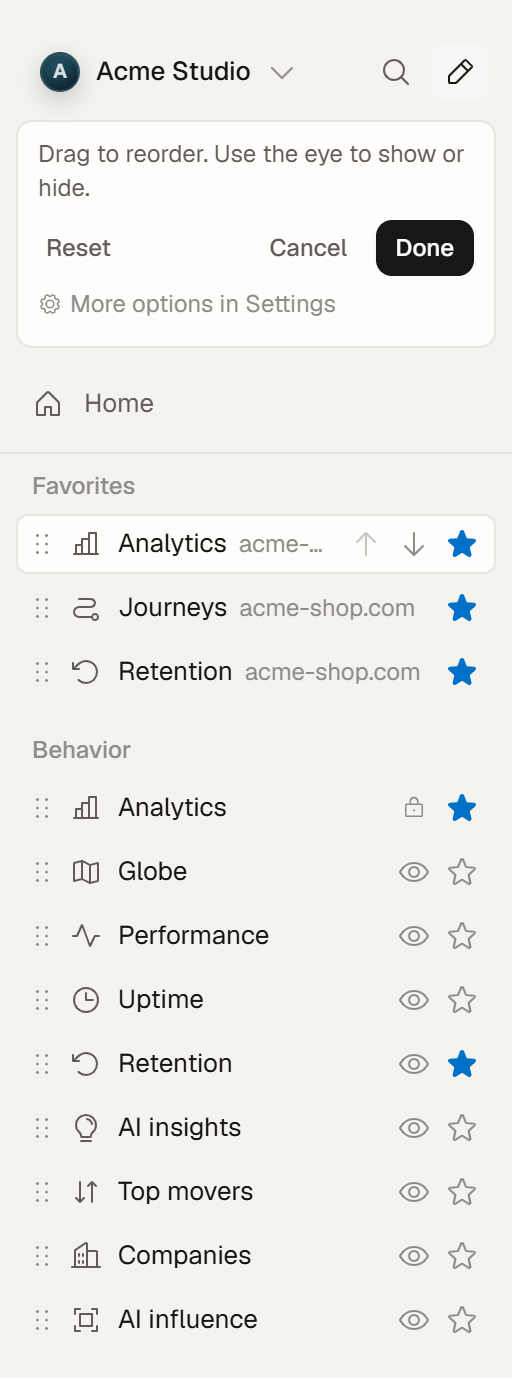
On a touch screen each item has a ... menu to move it, show or hide it and add it to your favorites.
Reset returns the order and visibility of the sidebar you are editing to the defaults. Your favorites stay.
Switching between the main sidebar and a website, or collapsing the sidebar, also saves your changes and closes edit mode.
The same options in Settings
Settings → Account → Preferences → Dashboard navigation shows the same options as a list: reorder items with the handle or the arrow buttons, show or hide them, and reorder or remove your Favorites. Reset to default asks for confirmation and keeps your favorites. The Favorites list in Settings shows the favorites of the current workspace.
Where your layout is saved
Each team member arranges their own sidebar. Your layout and your favorites are saved to your account, so they follow you to other devices and browsers, and other open tabs pick up the change. The order and visibility of website tabs apply to every website you open. If a change cannot be synced right away, it stays saved on this device and a short message tells you.