When you see the Tracker not detected banner in your Zenovay dashboard, it means our automated install-health check could not confirm a working tracker on your site. The check runs periodically and looks at two things: whether your site is reachable, and whether we've received any events from your tracking code recently.
What the check actually does
- Fetches your website with the
ZenovayBot/1.0User-Agent and reads the start of the HTML to confirm the page is reachable. - Checks for recent events from your tracking code (the last few minutes and the last 24 hours).
- Compares against your site's normal rhythm so a quiet period on a low-traffic site isn't flagged as a problem.
If your site can't be reached, or no events have arrived for far longer than usual, the banner appears. The most important signal is whether events are actually coming in, not whether we can read your HTML.
Common causes
1. Tracker is on a sub-page but not the homepage
The check fetches your registered website address (the Domain URL field on the website's settings page). If you only added the script to specific pages, the check may say "not detected" — even if tracking works fine on the pages where it's installed.
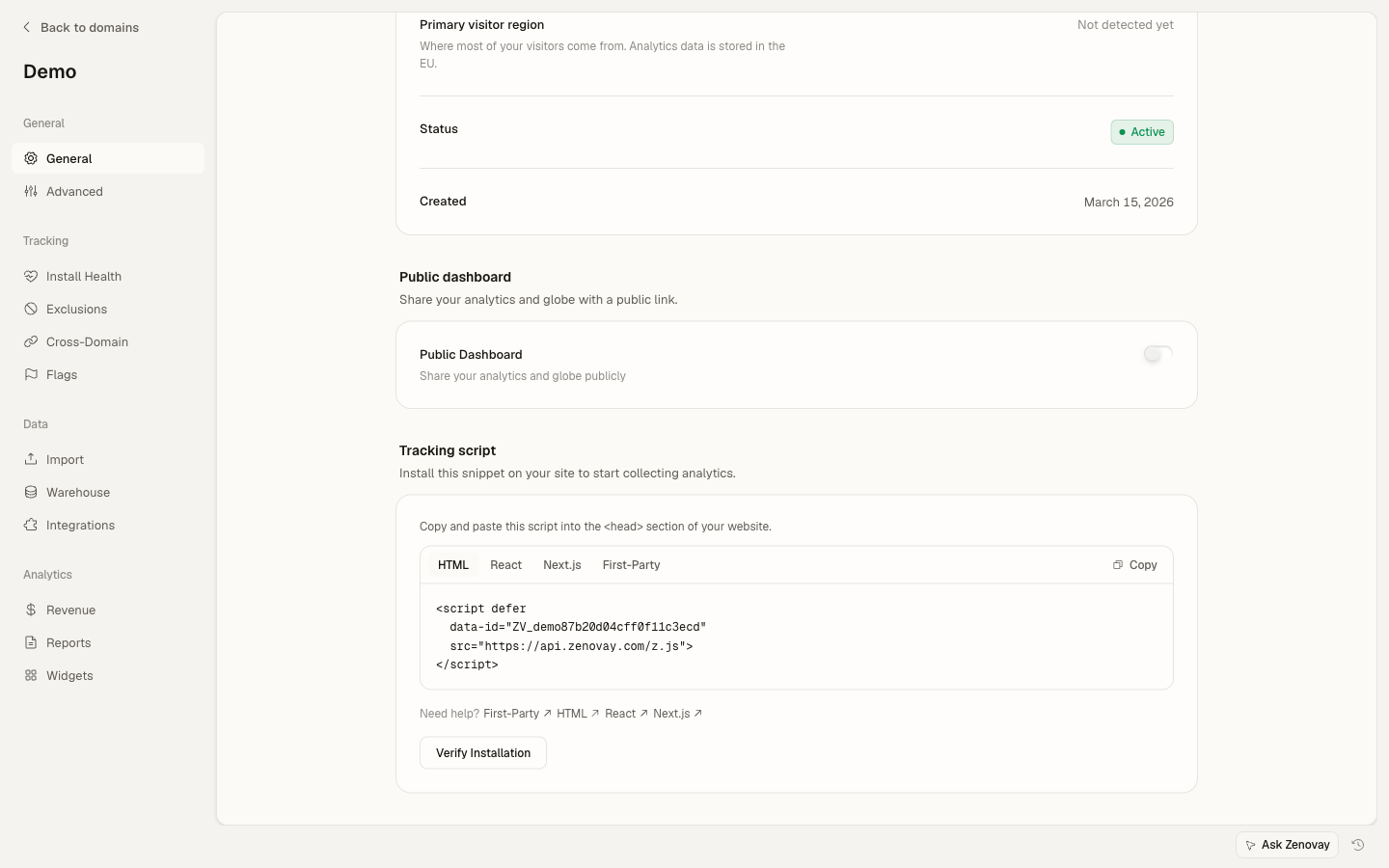
Fix: add the tracker to the site's shared layout / header so it loads everywhere, not just on a few pages. Or update the Domain URL on the website's settings page to an address that does have the tracker. To get there, open the website from Domains, then open its settings (the General tab).
2. Server-side rendering removes the tag
Some templating systems strip <script> tags they consider non-essential, especially in production builds. If you can see the script in your local development build but not in the live page source, the build is stripping it.
Fix: check your build configuration (Webflow custom code panel, Next.js Script component, WordPress theme cache).
3. CDN cache is serving an old version
If you recently added the tracker but your CDN (Cloudflare, Fastly, Vercel Edge) is caching a stale version of the page, the check sees the cached HTML.
Fix: purge the cache for the page. Wait a few minutes, then use Verify Installation on the website's settings page.
4. The tracker is loaded but cannot reach api.zenovay.com
Sometimes the script loads but is blocked from posting events. Common reasons:
- CSP
connect-srcdirective doesn't includeapi.zenovay.com - Corporate firewall blocks the domain
- Network outage in your visitors' region
Open DevTools → Network tab on a real visit and look for failed requests to api.zenovay.com. The error message will tell you which.
5. Tracking code mismatch
The check expects the registered tracking code. If you regenerated it but didn't update the script tag, the tracker is loading but events are being attributed to a different code.
Fix: on the website's settings page, find the Tracking script section (same page as the Domain URL field), copy the current snippet, and confirm the data-tracking-code value matches the one on your live site.
6. Localhost development
If your registered Domain URL is localhost:3000 or similar, the check can't reach it from the public internet. This is expected — register your real production address instead.
Re-running the detection check
After fixing the issue:
- Open the website's settings page and use the Verify Installation button (or wait — the install-health check re-runs periodically on its own).
- The banner clears once we can confirm a working tracker AND at least one recent event from your tracking code.
Still stuck?
If you've worked through the list and the banner persists:
- Open the Status page to confirm Zenovay's services are healthy.
- Email [email protected] with your homepage URL, the value of
data-tracking-codeon your live page, and a screenshot of the dashboard banner.