A heatmap shows the clicks and scroll depth of one page on a snapshot of that page. You choose the pages that matter to you, and Zenovay collects their clicks from the moment you create the heatmap. Every plan includes heatmaps: 1 per website on Free (desktop), 10 on Pro, 50 on Scale and unlimited on Enterprise.
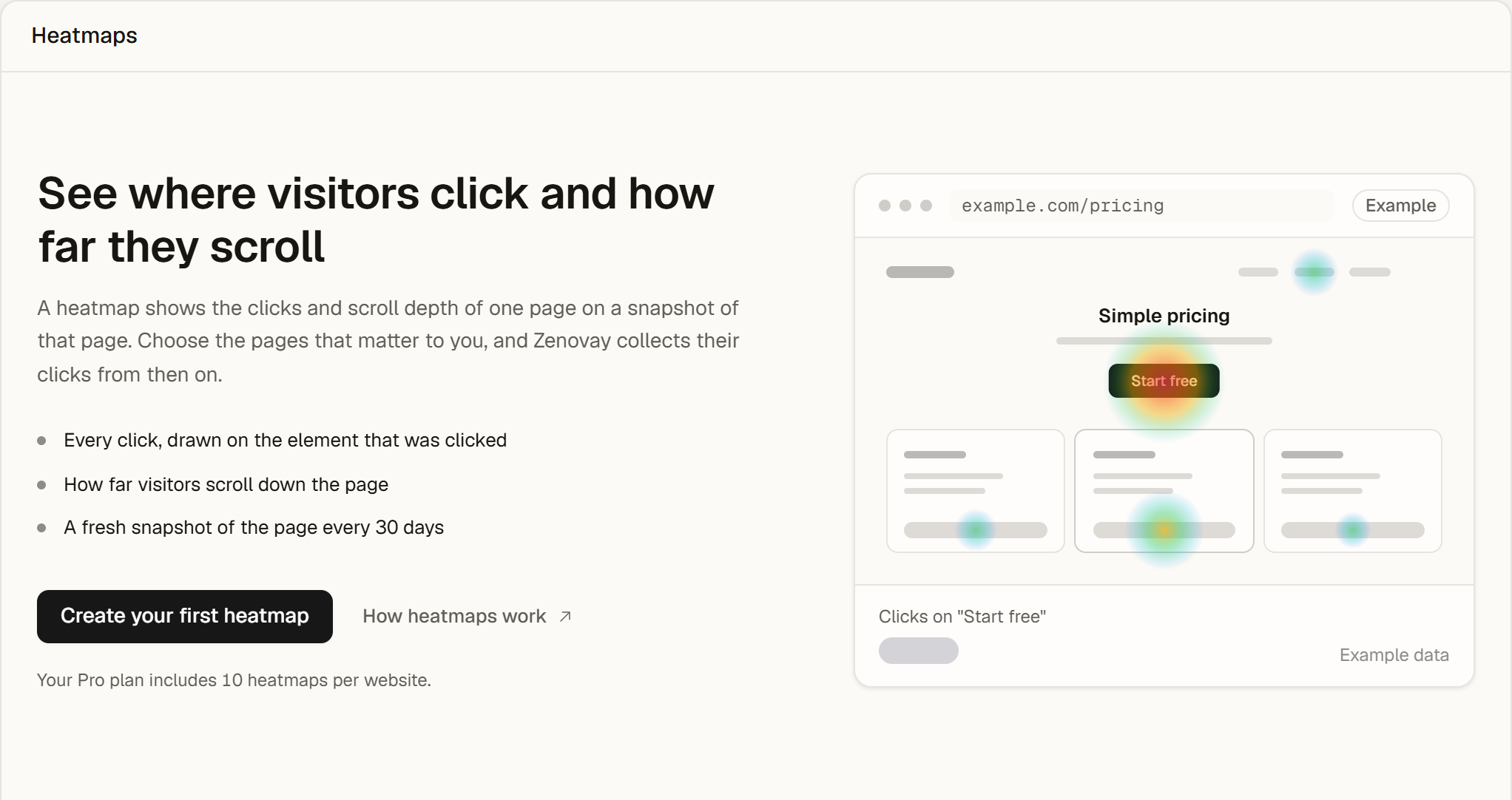
Create your first heatmap
Owners, admins and editors create heatmaps; everyone else on the team can open them.
Open the Heatmaps tab
Open your website from Domains and select Heatmaps in the sidebar. Select Create your first heatmap, or New heatmap once you have some.
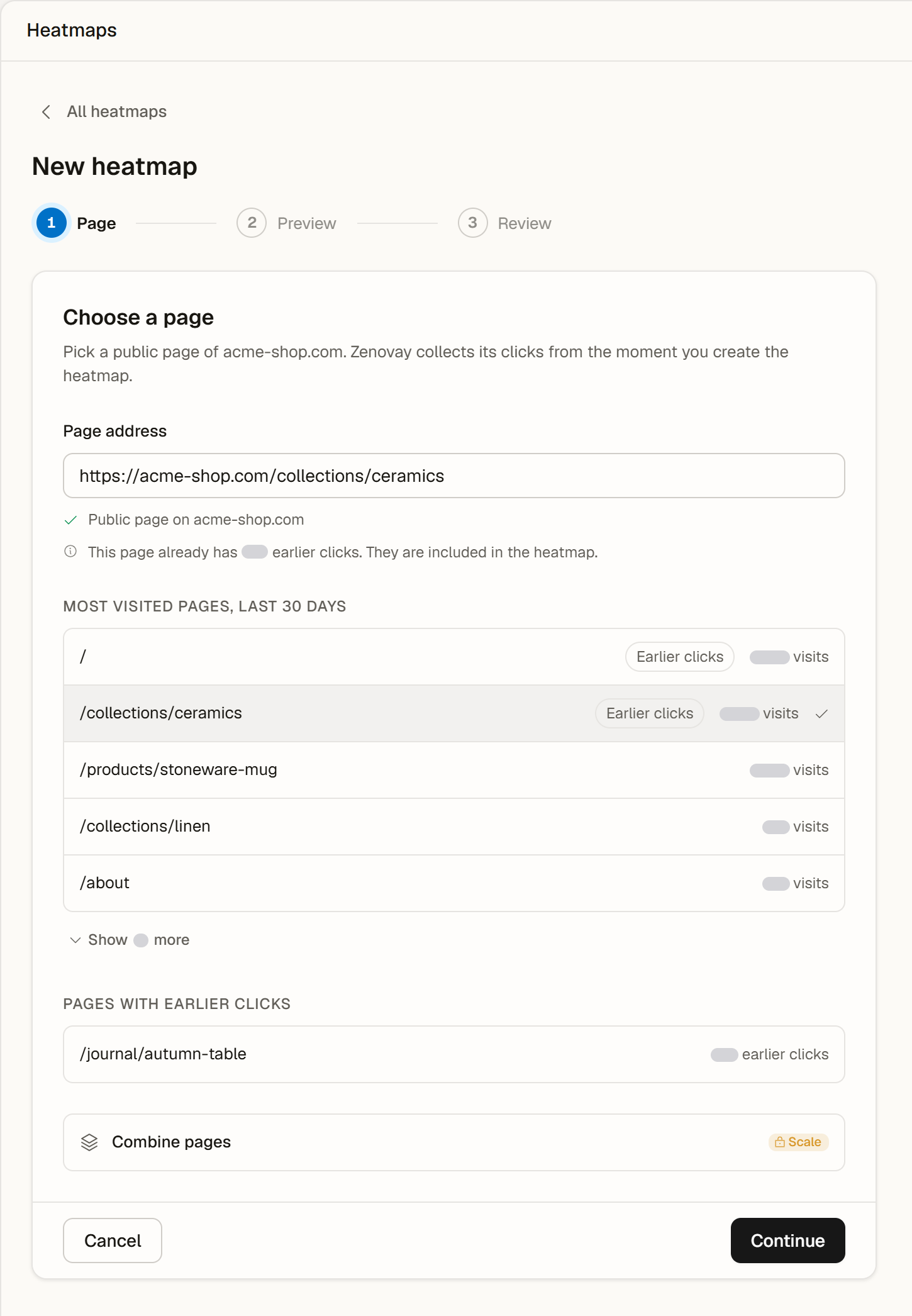
1. Page
Enter the address of a page, or pick a suggestion from Most visited pages, last 30 days or Pages with earlier clicks. Zenovay checks the page as you type and shows Public page on your domain when it is ready. Select Continue.
2. Preview
Zenovay takes a full-page snapshot of the page on desktop, usually in 10 to 30 seconds. If it cannot be taken right now, you can still continue: Zenovay tries again when you open the heatmap.
3. Review
Check the name (you can rename it later), the page, the devices, the history and the snapshot, then select Create heatmap. The heatmap opens right away.
Good to know about the page
- From now on. Clicks are collected from the moment you create the heatmap, so a new heatmap starts with No clicks yet.
- Earlier clicks. If the page already has clicks from before, step 1 says so and the heatmap includes them.
- Public pages. Heatmaps work on pages that open without a login. Step 1 explains when a page asks visitors to log in, belongs to another website or is excluded from tracking.
- One heatmap per page. A page that already has a heatmap offers Open heatmap instead (or Restore heatmap when it is archived). Query strings are ignored, so all versions of a page share one heatmap.
- Suggestions appear after about a week of visits. Until then, enter any page address.
Combine pages
On Scale and Enterprise, Combine pages in step 1 shows the clicks of several pages with the same layout in one heatmap, for example all blog posts. Enter a Page pattern such as /blog/* (* stands for any characters) and choose the Page for the snapshot: the clicks of all matching pages are shown on that page's snapshot. On Free and Pro, the option shows Scale.
Refresh page after a redesign
Each page has one snapshot per device. It is used for 30 days (14 days on Enterprise) and renewed when you open the heatmap after that, so you rarely need to do anything.
Use Refresh page when the page changed in a way you want to see now, for example after a redesign, a new hero section or a moved button. Open the heatmap, select ... and Refresh page. The device you are viewing gets a new snapshot right away; other devices update when you view them.
- Refreshes are counted per website and month: 20 on Pro, 100 on Scale and 300 on Enterprise. The menu shows how many are left, and they reset on the first day of each month (UTC).
- On Free, the snapshot renews automatically every 30 days.
Your heatmaps
The list shows each heatmap with its clicks of the last 30 days and the state of its snapshot. The ... menu of a row offers Open, Rename, Archive and Delete.
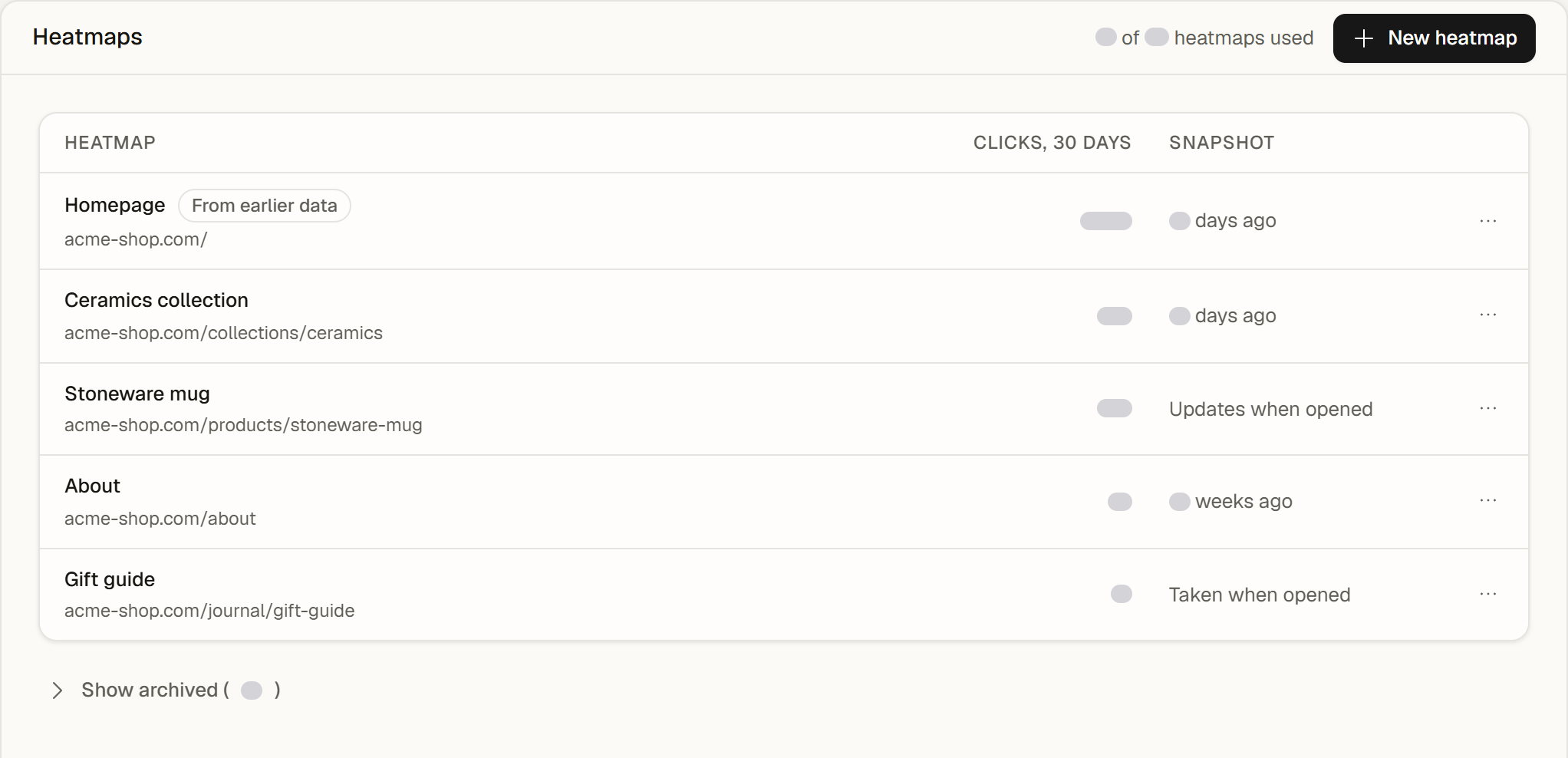
- Archive stops collecting clicks and frees a slot; the data stays and Restore brings it back.
- Delete removes the heatmap. Its clicks stay until they are older than your plan's history, unless you tick the option to delete them too.
- All slots in use? New heatmap opens a dialog: archive a heatmap you no longer need, or upgrade for more.
- After a downgrade, nothing is deleted. Extra heatmaps become Read only and stay visible; archive one and the next collects again.
Plans
| Free | Pro | Scale | Enterprise | |
|---|---|---|---|---|
| Heatmaps per website | 1 | 10 | 50 | Unlimited (fair use) |
| Devices | Desktop | Desktop, tablet, phone | Desktop, tablet, phone | Desktop, tablet, phone |
| History | 30 days | 60 days | 120 days | 180 days |
| Refresh page per month | Not included | 20 | 100 | 300 |
| Combine pages | Not included | Not included | Included | Included |